Connect your Microsoft Azure AI Foundry environment to Capsule Security for complete visibility into your AI agents, tools, knowledge bases, and conversation history. The integration covers both the classic Azure AI Foundry portal and the new Foundry experience.
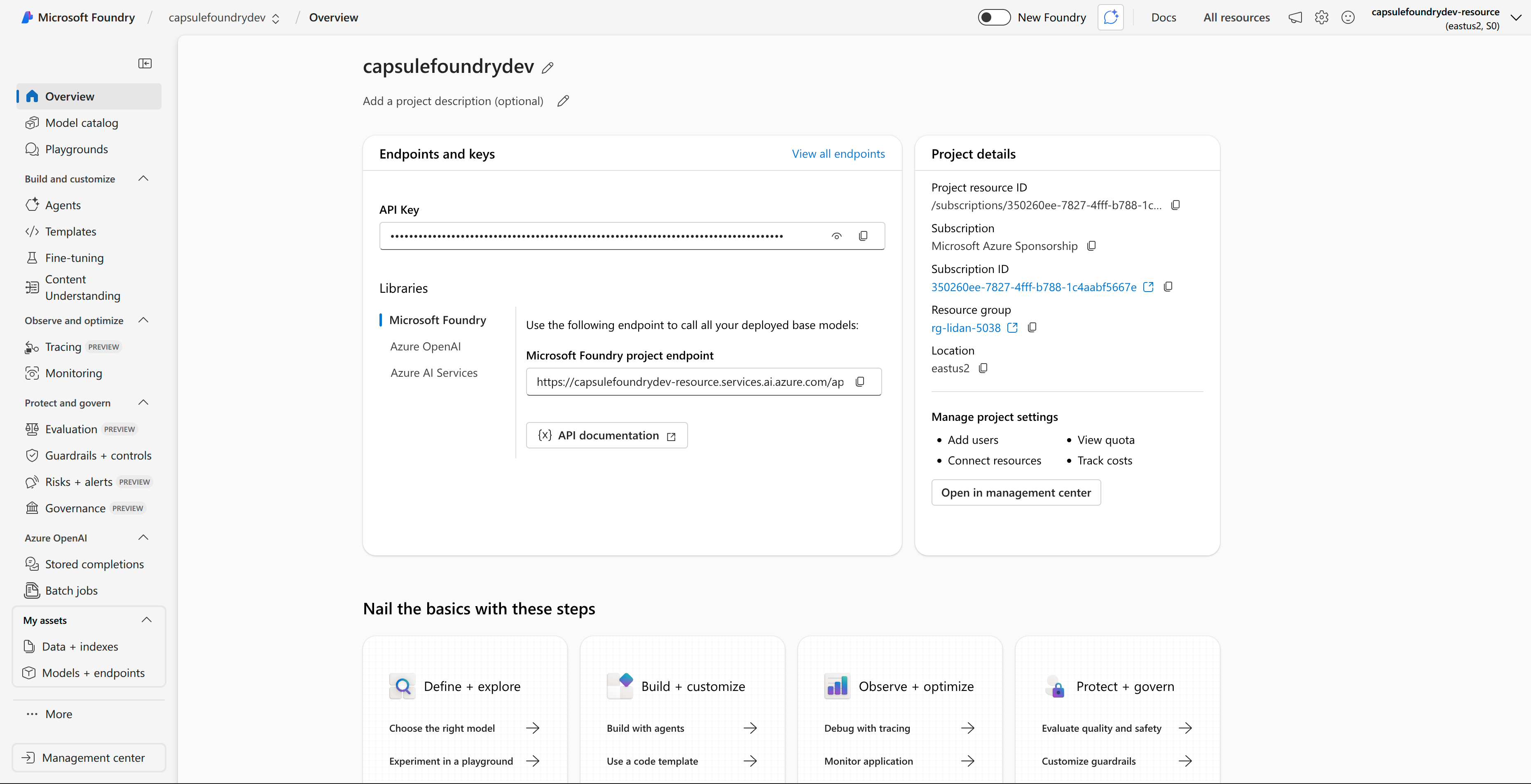
Capsule supports two setup paths for this integration:
- Standard Setup - Capsule automatically discovers resources and assigns the required RBAC roles during the OAuth consent flow. This is the recommended path for most organizations. See Step 1: Configure the Integration.
- Manual Setup - You pre-assign RBAC roles to the Capsule service principal yourself, then connect via OAuth. This is designed for organizations with strict least-privilege policies that do not allow the consenting admin to have role assignment permissions. See Alternative Setup: Manual Setup.
This integration uses Microsoft Entra ID (Azure AD) authentication to sync:
- Agents - AI assistants across the classic and new Foundry experiences
- Tools - Code Interpreter, File Search, Azure AI Search, Bing Grounding, OpenAPI, MCP (Foundry IQ), and Functions
- Knowledge Bases - Vector stores and files attached to agents
- Conversations - Thread messages and chat history
- Audit - Run history with tool invocations and session tracking
- Deployments & Connections - Model deployments and connection metadata
- Invocation - Send prompts to agents and capture responses for security assessments
- Log Analytics enrichment - Optionally correlate Foundry diagnostic events with verified Microsoft Entra users
Before you begin, ensure you have:
- An active Azure subscription with Azure AI Foundry resources deployed
- An Azure Entra ID account with access to read the subscriptions and create role assignments, such as Owner, on the subscriptions containing AI Foundry resources
- Access to the Capsule Security portal
- If any AI Foundry account has public network access disabled, someone who can approve private endpoint connections on that account - see Step 5: Approve Private Endpoint Connections
With Standard Setup, Capsule assigns the required roles to its service principal during sign-in. You do not need to assign them in advance. If you select Log Analytics enrichment, Capsule also assigns the required logging roles. See Permissions explained for the complete role list.
Setup looks up Capsule's own service principal through Microsoft Graph before assigning roles; the lookup needs no Graph application permission. If it fails, Standard Setup assigns no roles, and Capsule cannot read your resources until you assign them (see Granting the role). Setup grants no Microsoft Graph application permissions; Capsule uses them only for Log Analytics enrichment, where available (see Permissions and how to revoke them).
Capsule does not create a workspace or enable diagnostic logging until you review the discovered accounts and projects and select Set up logging.
Log Analytics enrichment also requires the Microsoft Graph application permissions User.Read.All to identify Microsoft Entra users and Application.Read.All to show the calling application as owner. Both permissions require tenant admin consent. See Permissions and how to revoke them.
For more information about Azure RBAC roles, see Azure role-based access control.
Standard Setup assigns the roles above to Capsule's service principal, so the account you sign in with needs both role assignment and read permissions:
| Requirement | Why |
|---|---|
| An account in your own Entra tenant | Resource discovery and role assignments are evaluated against your tenant and your subscriptions |
| Owner or User Access Administrator on every subscription holding AI Foundry resources | Assigning Capsule the roles above requires Microsoft.Authorization/roleAssignments/write |
| Read access to those same subscriptions | AI Foundry projects in a subscription the account cannot read are not discovered |
User Access Administrator satisfies both requirements. Contributor does not: it can create and manage resources but cannot assign roles.
Microsoft shows its consent page every time you connect, even when your tenant has already granted Capsule access. If your tenant does not let users consent to applications, the account that runs setup must also be an Entra administrator who can grant consent.
If your organization does not permit the account running setup to assign roles, use Alternative Setup: Manual Setup instead.
After setup, you can remove the permissions that only setup needs. See Permissions and how to revoke them.
Start the integration setup from the Capsule Security portal.
Log in to the Capsule Security portal
Click Integrations in the left sidebar
- Find the Azure AI Foundry card and click Set up Integration
Keep Set up Log Analytics enrichment selected to enable the dedicated logging setup after discovery. It is selected by default for new and reconnecting installations. Clear it to keep the existing inventory and sync flow without creating or changing logging resources. On reconnect, clearing it stops Capsule from using Log Analytics and deletes its diagnostic setting from each Foundry account. Existing workspaces remain unchanged.
Leave I have pre-assigned RBAC roles manually unchecked for Standard Setup. Select it only if the Capsule service principal already has every required role. This choice is independent of Log Analytics enrichment.
Review the notice that
AuditandRequestResponselogs may include prompt and response data, existing workspaces remain unchanged, and Azure ingestion and retention charges apply.Click Connect with Microsoft
- You'll be redirected to Microsoft's sign-in page
Grant Capsule the necessary permissions to access your Azure AI Foundry resources.
Sign in with your Azure/Microsoft account that has the required permissions (see Prerequisites)
Review the permissions requested by the Capsule application
- Click Accept to grant consent
During the OAuth consent flow, Capsule uses the consenting admin's session to discover resources and assign the selected Azure roles. After setup, Capsule uses its own service principal credentials for ongoing data synchronization.
Capsule assigns and uses these roles:
| Role | Scope | Purpose |
|---|---|---|
| Azure AI Developer | AI Services account and project | Needed at install time; see Permissions and how to revoke them |
| Foundry User (formerly Azure AI User) | AI Services account and project | Data-plane access to read and invoke agents, threads, responses, and assets |
| Reader | Subscription | Discover resources and identify owners for published agents |
| Log Analytics Reader | AI Services account | Query only that account's Foundry logs through resource-context access, when you select Log Analytics enrichment |
| Monitoring Contributor | AI Services account | Read and configure account diagnostic settings, when you select Log Analytics enrichment |
| Log Analytics Contributor | One resource group per subscription | Create or read the Capsule-managed workspace, when you select Log Analytics enrichment |
The admin performing the OAuth consent needs subscription read access and permission to create role assignments on the relevant subscriptions.
Foundry User grants every Cognitive Services data action on AI Services accounts and projects. Capsule uses these:
| Permission | Purpose |
|---|---|
Microsoft.CognitiveServices/accounts/AIServices/agents/read | Read agent definitions, threads, messages, runs, and run steps |
Microsoft.CognitiveServices/accounts/AIServices/agents/write | Create threads, messages, and runs to invoke agents |
Microsoft.CognitiveServices/accounts/AIServices/assets/read | Read files, vector stores, and vector store file associations |
Microsoft.CognitiveServices/accounts/AIServices/responses/read | Read Responses-API responses |
Microsoft.CognitiveServices/accounts/AIServices/responses/write | Invoke agents via the Responses API |
Microsoft.CognitiveServices/accounts/AIServices/applications/invoke/action | Invoke a published agent endpoint |
Microsoft.CognitiveServices/accounts/OpenAI/stored-completions/read | Read stored completions used to discover inline agents |
Microsoft.CognitiveServices/accounts/OpenAI/stored-completions/action | Access stored-completions operations |
Foundry User also provides the following control-plane permissions used during discovery:
| Permission | Purpose |
|---|---|
Microsoft.Resources/subscriptions/read | Discover Azure subscriptions |
Microsoft.CognitiveServices/accounts/read | Discover AI Services accounts across subscriptions |
Microsoft.CognitiveServices/accounts/projects/read | Discover AI Foundry projects within each account |
Microsoft.CognitiveServices/accounts/projects/applications/read | Read published agent application membership |
Microsoft.CognitiveServices/accounts/deployments/read | Read model deployments |
Microsoft.CognitiveServices/accounts/connections/read | Read connection metadata (never secrets) |
Reader provides subscription-level resource discovery and the activity information used to identify published agent owners:
| Permission | Purpose |
|---|---|
Microsoft.Insights/eventtypes/values/read | Read successful application publishing events |
For more information, see:
- Azure AI Foundry role-based access control
- Azure built-in roles for AI + machine learning
- User and admin consent in Azure
After you grant consent, Capsule automatically configures the integration.
- All Azure subscriptions you have access to are discovered
- AI Foundry projects within those subscriptions are detected
- Capsule begins syncing your Foundry resources
- Capsule adds owner information when Azure provides a verified owner
- Capsule does not create a Log Analytics workspace or diagnostic setting until you explicitly confirm the next step
- The Review your Foundry projects screen lists every discovered project as Public or Private
No manual project configuration is needed. If every project is Public, click Connect projects to finish. Continue to Step 4 to set up Log Analytics enrichment, or skip it. If any project is Private, then complete Step 5.
Log Analytics enrichment is optional. It adds owner information when Azure logs identify a Microsoft Entra user and Capsule can reliably match that activity to an agent. Your normal Foundry discovery and synchronization continue without it.
Before Capsule creates anything, the setup page shows the subscriptions, Foundry accounts, and projects that will be covered.
| Azure resource | Scope | What to expect |
|---|---|---|
| Log Analytics workspace | One per Azure subscription | Shared by all Foundry accounts and projects covered by this Capsule integration. Capsule creates it in the resource group of an existing Foundry account. |
| Diagnostic setting | One per Foundry account | Sends only Audit and RequestResponse logs to the dedicated workspace. All projects under the account share the setting. |
Capsule includes an identifier for your Capsule integration in each resource name so multiple Capsule integrations can use the same Azure subscription. Workspace names start with capsule-aif-logs-, and diagnostic setting names start with capsule-aif-enrich-.
Capsule preserves your existing workspaces and diagnostic settings. Selecting an existing workspace is not currently supported. If another diagnostic setting already sends the same logs elsewhere, both settings remain active and Azure may charge for both destinations.
Capsule displays the planned workspace region before confirmation. Capsule EU uses westeurope, and Capsule US uses eastus2.
RequestResponselogs may include prompts and responses.- Azure charges may apply for log ingestion and retention.
- New diagnostic settings collect future logs only, and the first logs may take time to appear.
- Capsule uses role-based access and does not store workspace keys.
- Log Analytics enrichment needs the Microsoft Graph
User.Read.AllandApplication.Read.Allapplication permissions with tenant admin consent.Application.Read.Allis needed to show the calling application as owner. Without it, setup stops before Capsule creates any Azure resources.
Capsule assigns an owner only when Azure provides enough information to verify the person and match the activity to an agent. Requests made with API keys and agents without a stable identifier may remain unassigned. Capsule does not infer ownership from project access, edit history, or timing.
Capsule configures each Foundry account independently. If one account fails, the successfully configured accounts remain active and Foundry synchronization continues. Resolve the displayed error and select Try again, or select Skip logs setup to continue with incomplete owner information.
Disabling enrichment during a reconnect stops Capsule from using Log Analytics for future syncs and deletes the Capsule diagnostic setting from each Foundry account. It does not delete the workspace. To remove it, see Remove dedicated logging.
Capsule deletes its diagnostic setting from each Foundry account when you disable the integration, remove it, or reconnect without enrichment. Capsule never deletes the Log Analytics workspace, so Azure keeps the retained logs and charges for them until you delete the workspace yourself. If Capsule cannot reach an account, its diagnostic setting stays and Azure keeps sending logs there, so complete item 1 below. Re-enabling an integration that still has enrichment selected recreates the diagnostic settings, and recreates the workspace if you deleted it. Remove the resources after you disable enrichment or remove the integration in Capsule.
| Azure resource | Name | Where to find it |
|---|---|---|
| Diagnostic setting | capsule-aif-enrich-<integration-key> | Each covered Foundry account |
| Log Analytics workspace | capsule-aif-logs-<integration-key>-<subscription-key> | The anchor resource group of each subscription |
<integration-key>is 12 hexadecimal characters. It is the same on every resource of one Capsule integration, and the workspace also carries it in thecapsule-integration-keytag.<subscription-key>is 8 hexadecimal characters.- The anchor resource group is the resource group of the covered Foundry account whose resource ID sorts first in that subscription.
- If the base workspace name was already taken, Capsule appended a 4-character suffix, for example
capsule-aif-logs-<integration-key>-<subscription-key>-1a2b.
Delete the diagnostic setting from each Foundry account first, so Azure stops sending logs. In the Azure portal, open the account, go to Monitoring → Diagnostic settings, and delete the setting whose name starts with
capsule-aif-enrich-. On the command line:az monitor diagnostic-settings list --resource <AI_ACCOUNT_RESOURCE_ID> \ --query "[?starts_with(name, 'capsule-aif-enrich-')].name" -o tsv az monitor diagnostic-settings delete --name <SETTING_NAME> --resource <AI_ACCOUNT_RESOURCE_ID>Delete the workspace in each subscription. Match the integration key from step 1, because other Capsule integrations may have their own workspace in the same subscription:
az monitor log-analytics workspace list --subscription <SUBSCRIPTION_ID> \
  --query "[?starts_with(name, 'capsule-aif-logs-')].{name:name, resourceGroup:resourceGroup}" -o table
az monitor log-analytics workspace delete --subscription <SUBSCRIPTION_ID> \
  --resource-group <RESOURCE_GROUP> --workspace-name <WORKSPACE_NAME>
Azure keeps a deleted workspace recoverable for 14 days. Add
--force trueto delete it permanently.Optionally, remove the logging roles from the Capsule service principal. See Remove Azure role assignments.
Skip this step if every project on the review screen is Public.
Capsule marks a project Private when any of the following is true:
- Its AI Services account has public network access disabled
- Its AI Services account allows access only from Selected networks and private endpoints
- The project itself has public network access disabled
Capsule cannot reach these projects over the public internet, so it connects through Azure Private Link. For each AI Services account that holds private projects, Capsule creates a private endpoint in its own Azure subscription and virtual network that targets your account. Traffic between Capsule and your account stays on the Microsoft backbone network, and your account keeps public network access disabled.
You do not create virtual networks, peerings, or DNS records in your environment. Capsule hosts the private endpoint and its private DNS zones.
Because the private endpoint lives in Capsule's Entra tenant, Azure cannot approve it automatically. Each connection stays Pending until an administrator of your AI Services account approves it. Approval is a one-time step per AI Services account, not per project.
- On the Review your Foundry projects screen, click Approve & connect
- Capsule requests one private endpoint per AI Services account with private projects, then lists the accounts waiting for your approval
- Approve each pending connection in Azure, using the portal or the CLI below
Approving requires write access on the AI Services account, such as Owner or Contributor.
- Open the AI Services account that Capsule listed
- Go to Networking and open the Private endpoint connections tab
- Find the connection in the Pending state whose private endpoint name starts with
capsule-pe-. Its description readsCapsule AI security monitoring private link - Select it, click Approve, and confirm
Repeat for each account Capsule listed.
List the pending connections on the account:
az network private-endpoint-connection list \
  --id <AI_ACCOUNT_RESOURCE_ID> \
  --query "[?properties.privateLinkServiceConnectionState.status=='Pending'].{id:id, description:properties.privateLinkServiceConnectionState.description}" \
  -o table
Approve the Capsule connection by its ID:
az network private-endpoint-connection approve \
  --id <CONNECTION_ID> \
  --description "Approved for Capsule"
<AI_ACCOUNT_RESOURCE_ID> has the form /subscriptions/<subscription-id>/resourceGroups/<resource-group-name>/providers/Microsoft.CognitiveServices/accounts/<account-name>.
You do not need to reconnect the integration. The next scheduled sync reaches the account through the private endpoint. Until a connection is approved, projects on that account do not sync.
To revoke Capsule's access, reject or remove the connection from the same Private endpoint connections tab. Sync for that account stops, and agents Capsule already synced are kept rather than deleted.
- Private link is not available - private connectivity is not enabled for your Capsule environment. Contact Capsule support
- Private endpoint could not be created - click Try Again to rerun setup. If it fails again, contact support with the error shown
For more information, see Configure virtual networks for Azure AI services and Manage Azure private endpoints.
Once the integration is configured:
- Initial sync begins automatically
- First sync may take several minutes depending on data volume
- Test connection verifies access to your Foundry resources and, when enabled, the Log Analytics configuration
- Missing Log Analytics configuration does not fail the connection because Foundry discovery and synchronization remain available
- View synced agents in Inventory → Agents
- View conversations in Observability → Filter Activity Type - Session
- To remove the permissions that only setup needs, see Permissions and how to revoke them
Capsule syncs your AI Foundry data as its own service principal, so ongoing access depends on that service principal holding the Foundry User role on your AI Foundry resources. Use the read-only checks below to confirm the assignment is in place.
These checks apply to the project-based Foundry experience - Microsoft.CognitiveServices accounts of kind AIServices.
Everything in this step is read-only and needs only Reader on the scope you are checking. Check at whichever level you expect the assignment to exist: a subscription, a resource group, or an individual AI Services account.
In the Azure portal:
- Open the subscription, resource group, or AI Services account
- Go to Access control (IAM) → Check access
- Search for and select the Capsule service principal
- Read the result. Foundry User should be listed under Role assignments, which includes assignments inherited from a parent scope
If the role is listed and no deny assignment applies, access is in place; contact Capsule support if data is still missing. If the role is absent, see Granting the role.
The same result lists any Deny assignments that apply at that scope. Deny assignments are typically created by a managed application and are not overridden by a role assignment at any scope, including subscription scope. If one applies to the Capsule service principal, assigning a role will not resolve it - your Azure platform team has to exclude the service principal from the deny assignment.
The equivalent role check on the command line:
az role assignment list --assignee-object-id <SP_OBJECT_ID> --scope <SCOPE> --include-inherited -o tableReplace <SCOPE> with the resource ID of the level you are checking:
| Scope | Value for <SCOPE> |
|---|---|
| Subscription | /subscriptions/<subscription-id> |
| Resource group | /subscriptions/<subscription-id>/resourceGroups/<resource-group-name> |
| AI Services account | /subscriptions/<subscription-id>/resourceGroups/<resource-group-name>/providers/Microsoft.CognitiveServices/accounts/<account-name> |
Replace <SP_OBJECT_ID> with the object ID of the Capsule service principal in your tenant. Capsule provides the Application (Client) ID to use as <CAPSULE_APP_ID>; the command below prints the object ID as a GUID, which you paste in place of <SP_OBJECT_ID>:
az ad sp show --id "<CAPSULE_APP_ID>" --query id -o tsvThe Foundry User role carries the data-plane permissions Capsule needs. Assign it by role definition ID rather than by name, so the command works in tenants that still show the former name. This command writes a role assignment and requires Owner or User Access Administrator on <SCOPE>:
az role assignment create \
  --assignee-object-id <SP_OBJECT_ID> \
  --assignee-principal-type ServicePrincipal \
  --role 53ca6127-db72-4b80-b1b0-d745d6d5456d \
  --scope <SCOPE>
Assigning at subscription or resource group scope covers every AI Services account beneath it, including accounts created later. Account scope also works and is narrower.
To do the same in the Azure portal: open the subscription, resource group, or AI Services account and go to Access control (IAM) → Add → Add role assignment. Search for Foundry User, confirm its role definition ID is 53ca6127-db72-4b80-b1b0-d745d6d5456d, then choose the User, group, or service principal member type and select the Capsule service principal.
You do not need to reconnect the integration in Capsule. The new assignment takes effect automatically.
After setup, Capsule reads your Foundry environment with its own service principal. This section lists what it holds in your tenant, what only setup used, and how to remove it.
The account that ran setup used its own Owner or User Access Administrator role once, to assign roles. That role belongs to that account, not to Capsule. If the account holds it only for setup, remove it afterwards, or use Microsoft Entra Privileged Identity Management to activate it only for setup and let it expire.
In short
- Keep: Foundry User, the Capsule AI Foundry Reader custom role (Manual Setup default), Reader (only if listed), Log Analytics Reader (only if listed), and the private endpoint connection for private accounts. Removing Foundry User or the custom role stops sync. Also keep the Microsoft Graph
User.Read.AllandApplication.Read.Allapplication permissions (only if listed): with Log Analytics enrichment (the Log Analytics enrichment feature) on, Capsule uses them to name agent owners, and reinstalling does not add them back. - Safe to remove after setup: every delegated grant, Azure AI Developer, and, if listed, Monitoring Contributor (add it back before turning enrichment off, disabling, deleting or re-enabling) and Log Analytics Contributor (add it back before re-enabling).
- Order: remove delegated grants, then role assignments. Check the integration in Capsule after each group.
A delegated grant lets Capsule act as the person who consented; Capsule uses it only during setup. An application permission lets Capsule act as itself, with no user signed in. An Azure role (RBAC) controls access to Azure resources.
| Permission | Kind | Scope | Access | When Capsule uses it | If you remove it |
|---|---|---|---|---|---|
Azure Resource Manager user_impersonation | Entra delegated grant | All users in your tenant, or only the user who consented | Write-capable (acts as the signed-in user); Capsule used it once | Install time | Nothing. Reinstalling shows the consent screen again and re-creates it |
Microsoft Graph User.Read (older installs only) | Entra delegated grant | All users in your tenant, or only the user who consented | Read | Install time | Nothing |
Microsoft Cognitive Services or Azure Cognitive Search user_impersonation (older installs only) | Entra delegated grant | All users in your tenant, or only the user who consented | Write-capable by delegation | Install time | Nothing after install |
Microsoft Graph Application.Read.All (only if listed) | Entra application permission | Tenant | Read | Ongoing | Only with Log Analytics enrichment on. Syncs use it to name applications as agent owners. Owners stay unnamed. Reinstalling does not add it back |
Microsoft Graph User.Read.All (only if listed) | Entra application permission | Tenant | Read | Ongoing | Only with Log Analytics enrichment on. Setup and the connection test check it; syncs use it to name people as agent owners. Enrichment setup and the connection test fail, and owners stay unnamed. Reinstalling does not add it back |
Azure AI Developer (64702f94-c441-49e6-a78b-ef80e0188fee) | Azure RBAC role | AI Services accounts and projects | Write-capable by definition | Install time | Nothing after install. Reinstalling with Standard Setup assigns it again |
Foundry User, formerly Azure AI User (53ca6127-db72-4b80-b1b0-d745d6d5456d) | Azure RBAC role | AI Services accounts and projects | Needed. Write-capable by definition: all Cognitive Services data actions, plus accounts/listkeys/action, accounts/projects/connections/listsecrets/action, Microsoft.Resources/deployments/* and Microsoft.Support/*. | Ongoing | Agent, thread, run and file sync stops |
Reader (acdd72a7-3385-48ef-bd42-f606fba81ae7) (only if listed) | Azure RBAC role | Subscription | Read | Ongoing | Not tested. Keep it. Manual Setup with --no-custom-role and Standard Setup with Log Analytics enrichment assign it per subscription |
| Capsule AI Foundry Reader, Manual Setup default | Azure RBAC role (custom) | One subscription | Needed; includes write-capable data actions (agents/write, responses/write, applications/invoke/action) | Ongoing | Sync stops |
| Private endpoint connection | Private endpoint connection | Each private AI Services account | Network path into the account | Ongoing | Only for private accounts. Sync for that account stops. See After approval |
Log Analytics Reader (73c42c96-874c-492b-b04d-ab87d138a893) (only if listed) | Azure RBAC role | Each AI Services account | Read | Ongoing | Setup and the connection test check log read access; syncs query the account's logs to find agent owners. Not tested. Owner lookups need read access to the account's logs, which this role grants. Standard Setup reassigns it |
Monitoring Contributor (749f88d5-cbae-40b8-bcfc-e573ddc772fa) (only if listed) | Azure RBAC role | Each AI Services account | Write-capable (diagnostic settings) | Install time | Only when Capsule creates, deletes or restores its diagnostic settings: at setup, when enrichment is turned off, when the integration is disabled or deleted, and when it is re-enabled. Safe to remove after setup. Without it, turning enrichment off, disabling or deleting leaves Capsule's diagnostic settings on the account, still sending logs to the workspace (delete them yourself), and re-enabling does not restore them, with no error shown. Add it back before those actions. Standard Setup reassigns it |
Log Analytics Contributor (92aaf0da-9dab-42b6-94a3-d43ce8d16293) (only if listed) | Azure RBAC role | Resource group of one Foundry account per subscription | Write-capable | Install time | Only when Capsule creates its Log Analytics workspace (at setup, or on re-enable if the workspace was deleted) and when it creates or restores diagnostic settings that send logs to it. Safe to remove after setup. Add it back before re-enabling, or the diagnostic settings are not restored. Standard Setup reassigns it |
Standard Setup roles and scopes are in Permissions explained; for the Log Analytics enrichment roles, use the scopes in the table above. Manual Setup roles are in Alternative Setup: Manual Setup; with --no-custom-role that is Foundry User and Azure AI Developer at account scope, plus Reader at subscription scope.
Portal: In the Microsoft Entra admin center (entra.microsoft.com), open Entra ID → Enterprise apps → All applications and search for the Application (Client) ID that Capsule provides. Open the match. Its Object ID is the <SP_OBJECT_ID> used below.
CLI:
az ad sp show --id "<CAPSULE_APP_ID>" --query id -o tsvThe output is <SP_OBJECT_ID>.
The authorization request uses the /.default scope, so consent grants every delegated permission declared on Capsule's application at the time you consented, not only the ones Capsule uses. Capsule has since removed some of them, so older installs can hold more grants than new ones. Capsule uses its delegated token once during setup and does not store it, so all of them are safe to remove.
Portal: In the Microsoft Entra admin center, open the Capsule enterprise application, then Permissions → Admin consent (also check User consent). Select ... on a permission and choose Revoke permission. Revoking needs the Cloud Application Administrator or Application Administrator role. See Microsoft's guide. Grants given by individual users cannot be revoked in the portal; use the CLI.
CLI: List the grants. Manual Setup still runs the consent flow, so expect the same grants.
az rest --method GET \
  --uri "https://graph.microsoft.com/v1.0/servicePrincipals/<SP_OBJECT_ID>/oauth2PermissionGrants" \
  --query "value[].{grantId:id, resourceId:resourceId, consentType:consentType, scope:scope}" -o table
resourceId is the service principal of the API the grant is for. To see its name:
az ad sp show --id "<RESOURCE_ID>" --query displayName -o tsvDelete a grant by its grantId. This removes every scope in that grant. Grants made for the whole tenant show consentType AllPrincipals; a grant made for one user shows Principal. Delete both kinds.
az rest --method DELETE \
--uri "https://graph.microsoft.com/v1.0/oauth2PermissionGrants/<GRANT_ID>"Capsule uses User.Read.All and Application.Read.All only for Log Analytics enrichment. Setup and the connection test check User.Read.All, and Log Analytics setup stops without it; syncs use User.Read.All to name people and Application.Read.All to name applications as agent owners. Without them, enrichment setup and the connection test fail, and owners stay unnamed. Reinstalling never adds them back, so we recommend keeping both. If you remove them anyway, remove only what the list below shows; it can be empty.
CLI: List the application permissions assigned to the Capsule service principal:
az rest --method GET \
  --uri "https://graph.microsoft.com/v1.0/servicePrincipals/<SP_OBJECT_ID>/appRoleAssignments" \
  --query "value[].{assignmentId:id, resourceId:resourceId, appRoleId:appRoleId}" -o table
To name a Microsoft Graph permission, look up its appRoleId:
az ad sp show --id 00000003-0000-0000-c000-000000000000 \
  --query "appRoles[?id=='<APP_ROLE_ID>'].value | [0]" -o tsv
Delete one using the listed resourceId as <RESOURCE_ID> (the API's service principal, not Capsule's) and the listed assignmentId as <ASSIGNMENT_ID>. This is the route Microsoft recommends:
az rest --method DELETE \
  --uri "https://graph.microsoft.com/v1.0/servicePrincipals/<RESOURCE_ID>/appRoleAssignedTo/<ASSIGNMENT_ID>"
Deleting through servicePrincipals/<SP_OBJECT_ID>/appRoleAssignments/<ASSIGNMENT_ID> also works but is not the recommended route. Deleting Microsoft Graph application permissions needs the Privileged Role Administrator role (Microsoft Learn).
Portal: The same Revoke permission action on the Admin consent tab may be available for application permissions; if you do not see it, use the CLI.
Removing an application permission does not invalidate tokens Capsule already holds. They stay valid until they expire: typically 60 to 90 minutes, and up to 28 hours for clients that support continuous access evaluation (Microsoft Learn).
Keep the Foundry User and custom role assignments: removing either stops sync. Azure AI Developer is safe to remove after install. Keep Reader and Log Analytics Reader if listed. Monitoring Contributor and Log Analytics Contributor are used only to create, delete or restore Capsule's diagnostic settings and Log Analytics workspace, so they are safe to remove after install. Add Monitoring Contributor back before you turn enrichment off, disable, delete or re-enable the integration, and Log Analytics Contributor before re-enabling. Deleting the integration never deletes the Log Analytics workspace and never removes role assignments.
Portal: To see where Capsule holds roles in the portal, open an AI Services account or project, go to Access control (IAM) → Role assignments and search for the service principal from Find the Capsule service principal. The Capsule enterprise application's Permissions page in Entra lists API permissions only, so these roles never appear there.
In the Azure portal, open the scope shown in the list (subscription, resource group, or resource), then Access control (IAM) → Role assignments. Tick the Capsule row, choose Remove, then Yes. An inherited row has to be removed at the parent scope; use its (Inherited) link. See Microsoft's guide.
CLI: List the assignments in each subscription. az role assignment list --all covers one subscription, so loop over the ones in your tenant:
for SUB in $(az account list --query "[?tenantId=='<TENANT_ID>'].id" -o tsv); do
  az role assignment list --subscription "$SUB" --assignee-object-id <SP_OBJECT_ID> --all \
    --query "[].{role:roleDefinitionName, scope:scope, assignmentId:id}" -o table
done
Delete exactly one assignment by its assignmentId:
az role assignment delete --ids "<ASSIGNMENT_ID>"Removing a role assignment needs Owner, User Access Administrator or Role Based Access Control Administrator on that scope. Assignments at management-group scope are not in this output; check them with --include-inherited or in the portal. Changes take up to about 10 minutes to propagate (Microsoft Learn).
To stop Capsule reaching a private account, reject its private endpoint connection as described in After approval.
To restore a removed role, run the command in Granting the role with that role's ID from the table above (for the custom role, use its name). Assign Foundry User on each AI Services account and project it was on.
In Capsule, open Integrations and find the integration row
Open the row's actions menu and choose Sync. Wait about 10 minutes after removing a role assignment, and at least 90 minutes after removing an application permission, before you sync
Check the Status column. Failed means something you removed was needed; restore it with Restore a removed role
Synced alone does not prove nothing broke: the inventory can shrink without an error, so also complete item 5 below and check that your agents still appear in Inventory → Agents
Check that Last synced moves to the current time
Choose Refresh environments from the same menu. The environment count should not drop; a drop means discovery lost access
For the checks that confirm access, see Verifying Access After Setup.
Reconnecting or reinstalling the integration re-runs consent with the /.default scope. Capsule asks Microsoft to show the consent screen every time, so accepting it re-creates every delegated grant declared on Capsule's application, including ones you removed. Reinstalling never grants application permissions, so any you remove stay removed. The grants it creates may be per-user rather than tenant-wide, so list them again. Standard Setup also re-assigns the Capsule roles. Manual Setup never re-assigns roles. Repeat these steps after any reinstall.
Use this setup path if your organization requires least-privilege access and wants full control over the permissions granted to the Capsule service principal.
With Manual Setup, you run the Capsule-provided setup template or script to create custom Azure roles with only the exact permissions Capsule needs, then complete the standard OAuth consent flow. Capsule skips automatic role assignment during setup. The manual-RBAC checkbox does not configure a Log Analytics workspace; make that independent choice in Step 4.
The setup template or script creates two subscription-qualified least-privilege custom roles. The Capsule AI Foundry Reader role is assigned at subscription scope and contains only control-plane reads:
| Permission | Purpose |
|---|---|
Microsoft.Resources/subscriptions/read | Discover subscriptions |
Microsoft.CognitiveServices/accounts/read | Discover AI Services accounts |
Microsoft.CognitiveServices/accounts/projects/read | Discover AI Foundry projects |
Microsoft.CognitiveServices/accounts/projects/applications/read | Read published agent application membership |
Microsoft.CognitiveServices/accounts/connections/read | Read connection metadata |
Microsoft.CognitiveServices/accounts/deployments/read | Read model deployments |
Microsoft.CognitiveServices/accounts/privateEndpointConnections/read | Read private endpoint connections |
Microsoft.Insights/eventtypes/values/read | Read events used to identify published agent owners |
The Capsule AI Foundry Data role is assigned only at the AI Services account:
| Permission | Purpose |
|---|---|
Microsoft.CognitiveServices/accounts/AIServices/agents/read | Read agents, threads, messages, runs, run steps |
Microsoft.CognitiveServices/accounts/AIServices/agents/write | Create threads, messages, runs to invoke agents |
Microsoft.CognitiveServices/accounts/AIServices/assets/read | Read files and vector stores |
Microsoft.CognitiveServices/accounts/AIServices/responses/read | Read Responses-API responses |
Microsoft.CognitiveServices/accounts/AIServices/responses/write | Invoke agents via the Responses API |
Microsoft.CognitiveServices/accounts/AIServices/applications/invoke/action | Invoke a published agent endpoint |
Microsoft.CognitiveServices/accounts/OpenAI/stored-completions/read | Read stored completions for inline-agent inventory |
Microsoft.CognitiveServices/accounts/OpenAI/stored-completions/action | Access stored-completions operations |
The reader role grants connection metadata read only (connections/read), never connections/listsecrets - secrets are never accessed. Manual Setup grants no Microsoft Graph application permissions.
For optional Log Analytics enrichment, the current Capsule template also creates narrowly scoped roles for:
Microsoft.Insights/diagnosticSettings/readandwrite, plusMicrosoft.Insights/logs/*/read, on each Foundry account- Workspace create/read and table metadata read on the resource group where Capsule creates the dedicated workspace
The setup template creates the selected custom Azure roles and assigns them to the Capsule service principal at their documented scopes. Use none to retain base synchronization without logging grants, or autoCreate for the dedicated Capsule-managed workspace setup. The template configures RBAC only and never creates or deletes the workspace or diagnostic settings.
Use Capsule's current Deploy to Azure template once per Azure subscription that contains Foundry resources. It provisions the base integration and accepts none or autoCreate for the optional logging roles. Leave logAnalyticsMode as none for base synchronization only.
The script below is a base-only CLI alternative to the template. It does not grant Log Analytics permissions. If you use it, clear the enrichment checkbox or separately deploy the current template with autoCreate before selecting Set up logging.
Prerequisites:
- Azure CLI installed and logged in (
az login) - Owner or User Access Administrator on the target subscription (to create role definitions and assignments)
- The Capsule Application (Client) ID - contact the Capsule team to obtain this
For the base-only alternative, save the script below to a file, make it executable, and run it:
azure-ai-foundry-manual-setup.sh (click to expand)
#!/usr/bin/env bash
set -euo pipefail

readonly RED='\033[0;31m'
readonly GREEN='\033[0;32m'
readonly YELLOW='\033[1;33m'
readonly BLUE='\033[0;34m'
readonly NC='\033[0m'

info()    { echo -e "${BLUE}[INFO]${NC}  $*"; }
success() { echo -e "${GREEN}[OK]${NC}    $*"; }
warn()    { echo -e "${YELLOW}[WARN]${NC}  $*"; }
fail()    { echo -e "${RED}[ERROR]${NC} $*" >&2; exit 1; }

usage() {
  cat <<EOF
Azure AI Foundry - Capsule Manual Setup

Provisions the minimum RBAC roles for the Capsule service principal on your
Azure AI Foundry (AI Services) account.

Usage:
  $(basename "$0") [OPTIONS]

Required:
  --capsule-app-id    Application (client) ID of the Capsule multi-tenant app
  --subscription-id   Azure subscription ID containing the AI Services account
  --resource-group    Resource group containing the AI Services account
  --ai-account-name   Name of the Azure AI Services account

Options:
  --no-custom-role    Use three built-in Azure roles instead of creating a custom role
  --help              Show this help message

By default, the script creates subscription-qualified least-privilege reader and data roles
with only the exact permissions required. Use --no-custom-role to assign built-in roles instead.
EOF
  exit 0
}

CAPSULE_APP_ID=""
SUBSCRIPTION_ID=""
RESOURCE_GROUP=""
AI_ACCOUNT_NAME=""
USE_CUSTOM_ROLE=true

while [[ $# -gt 0 ]]; do
  case "$1" in
    --capsule-app-id)   CAPSULE_APP_ID="$2"; shift 2 ;;
    --subscription-id)  SUBSCRIPTION_ID="$2"; shift 2 ;;
    --resource-group)   RESOURCE_GROUP="$2"; shift 2 ;;
    --ai-account-name)  AI_ACCOUNT_NAME="$2"; shift 2 ;;
    --no-custom-role)   USE_CUSTOM_ROLE=false; shift ;;
    --help)             usage ;;
    *)                  fail "Unknown option: $1. Use --help for usage." ;;
  esac
done

[[ -n "$CAPSULE_APP_ID"  ]] || fail "--capsule-app-id is required"
[[ -n "$SUBSCRIPTION_ID" ]] || fail "--subscription-id is required"
[[ -n "$RESOURCE_GROUP"  ]] || fail "--resource-group is required"
[[ -n "$AI_ACCOUNT_NAME" ]] || fail "--ai-account-name is required"

readonly AI_ACCOUNT_SCOPE="/subscriptions/${SUBSCRIPTION_ID}/resourceGroups/${RESOURCE_GROUP}/providers/Microsoft.CognitiveServices/accounts/${AI_ACCOUNT_NAME}"
readonly SUBSCRIPTION_SCOPE="/subscriptions/${SUBSCRIPTION_ID}"

readonly ROLE_AI_USER="53ca6127-db72-4b80-b1b0-d745d6d5456d"
readonly ROLE_AI_DEVELOPER="64702f94-c441-49e6-a78b-ef80e0188fee"
readonly ROLE_READER="acdd72a7-3385-48ef-bd42-f606fba81ae7"

info "Validating prerequisites..."

if ! command -v az &>/dev/null; then
  fail "Azure CLI (az) is not installed. See https://aka.ms/install-azure-cli"
fi

if ! az account show &>/dev/null; then
  fail "Not logged into Azure CLI. Run 'az login' first."
fi

az account set --subscription "$SUBSCRIPTION_ID" 2>/dev/null \
  || fail "Cannot access subscription $SUBSCRIPTION_ID. Verify the ID and your permissions."

success "Azure CLI authenticated - subscription $SUBSCRIPTION_ID selected"

az resource show --ids "$AI_ACCOUNT_SCOPE" --query "id" -o tsv &>/dev/null \
  || fail "AI Services account '${AI_ACCOUNT_NAME}' not found in resource group '${RESOURCE_GROUP}'"

success "AI Services account '${AI_ACCOUNT_NAME}' found"

info "Ensuring Capsule service principal exists in your tenant..."

if ! az ad sp create --id "$CAPSULE_APP_ID" -o none 2>/dev/null; then
  info "Service principal already exists - continuing"
fi

SP_OBJECT_ID=$(az ad sp show --id "$CAPSULE_APP_ID" --query "id" -o tsv 2>/dev/null) \
  || fail "Could not retrieve service principal for app ID $CAPSULE_APP_ID"

success "Service principal object ID: ${SP_OBJECT_ID}"

assign_role() {
  local role_id="$1"
  local scope="$2"
  local label="$3"

  info "Assigning ${label}..."

  if az role assignment create \
       --assignee-object-id "$SP_OBJECT_ID" \
       --assignee-principal-type ServicePrincipal \
       --role "$role_id" \
       --scope "$scope" \
       -o none 2>/dev/null; then
    success "${label} assigned"
  else
    if az role assignment list \
         --assignee-object-id "$SP_OBJECT_ID" \
         --role "$role_id" \
         --scope "$scope" \
         --query "[0].id" -o tsv 2>/dev/null | grep -q .; then
      info "${label} already assigned - skipping"
    else
      fail "Failed to assign ${label}. Ensure you have Owner or User Access Administrator permissions."
    fi
  fi
}

readonly CUSTOM_READER_ROLE_NAME="Capsule AI Foundry Reader ${SUBSCRIPTION_ID}"
readonly CUSTOM_DATA_ROLE_NAME="Capsule AI Foundry Data ${SUBSCRIPTION_ID}"

if [[ "$USE_CUSTOM_ROLE" == "true" ]]; then
  for role_name in "$CUSTOM_READER_ROLE_NAME" "$CUSTOM_DATA_ROLE_NAME"; do
    existing_scope=$(az role definition list --name "$role_name" \
      --query "[0].assignableScopes[0]" -o tsv 2>/dev/null)
    if [[ -n "$existing_scope" && "$existing_scope" != "$SUBSCRIPTION_SCOPE" ]]; then
      fail "Custom role '${role_name}' exists but is scoped to ${existing_scope}, not ${SUBSCRIPTION_SCOPE}."
    fi
  done

  READER_ROLE_DEFINITION_OPERATION="create"
  DATA_ROLE_DEFINITION_OPERATION="create"
  [[ -n "$(az role definition list --name "$CUSTOM_READER_ROLE_NAME" --query "[0].id" -o tsv 2>/dev/null)" ]] \
    && READER_ROLE_DEFINITION_OPERATION="update"
  [[ -n "$(az role definition list --name "$CUSTOM_DATA_ROLE_NAME" --query "[0].id" -o tsv 2>/dev/null)" ]] \
    && DATA_ROLE_DEFINITION_OPERATION="update"

  info "Configuring subscription reader role '${CUSTOM_READER_ROLE_NAME}'..."
  az role definition "$READER_ROLE_DEFINITION_OPERATION" --role-definition '{
    "Name": "'"$CUSTOM_READER_ROLE_NAME"'",
    "Description": "Least-privilege subscription discovery permissions for Capsule AI Foundry",
    "Actions": [
      "Microsoft.Resources/subscriptions/read",
      "Microsoft.CognitiveServices/accounts/read",
      "Microsoft.CognitiveServices/accounts/projects/read",
      "Microsoft.CognitiveServices/accounts/projects/applications/read",
      "Microsoft.CognitiveServices/accounts/connections/read",
      "Microsoft.CognitiveServices/accounts/deployments/read",
      "Microsoft.CognitiveServices/accounts/privateEndpointConnections/read",
      "Microsoft.Insights/eventtypes/values/read"
    ],
    "DataActions": [],
    "NotActions": [],
    "NotDataActions": [],
    "AssignableScopes": [
      "/subscriptions/'"$SUBSCRIPTION_ID"'"
    ]
  }' -o none || fail "Failed to ${READER_ROLE_DEFINITION_OPERATION} reader role definition"

  info "Configuring account data role '${CUSTOM_DATA_ROLE_NAME}'..."
  az role definition "$DATA_ROLE_DEFINITION_OPERATION" --role-definition '{
    "Name": "'"$CUSTOM_DATA_ROLE_NAME"'",
    "Description": "Least-privilege account data permissions for Capsule AI Foundry",
    "Actions": [],
    "DataActions": [
      "Microsoft.CognitiveServices/accounts/AIServices/agents/read",
      "Microsoft.CognitiveServices/accounts/AIServices/agents/write",
      "Microsoft.CognitiveServices/accounts/AIServices/assets/read",
      "Microsoft.CognitiveServices/accounts/AIServices/responses/read",
      "Microsoft.CognitiveServices/accounts/AIServices/responses/write",
      "Microsoft.CognitiveServices/accounts/AIServices/applications/invoke/action",
      "Microsoft.CognitiveServices/accounts/OpenAI/stored-completions/read",
      "Microsoft.CognitiveServices/accounts/OpenAI/stored-completions/action"
    ],
    "NotActions": [],
    "NotDataActions": [],
    "AssignableScopes": [
      "/subscriptions/'"$SUBSCRIPTION_ID"'"
    ]
  }' -o none || fail "Failed to ${DATA_ROLE_DEFINITION_OPERATION} data role definition"
  success "Custom roles configured"

  info "Waiting for role definitions to propagate..."
  for i in $(seq 1 36); do
    if az role definition list --name "$CUSTOM_READER_ROLE_NAME" --query "[0].id" -o tsv 2>/dev/null | grep -q . \
       && az role definition list --name "$CUSTOM_DATA_ROLE_NAME" --query "[0].id" -o tsv 2>/dev/null | grep -q .; then
      success "Custom roles are available"
      break
    fi
    if [[ $i -eq 36 ]]; then
      fail "Custom roles are not visible after 3 minutes. Azure role propagation may be delayed - retry shortly."
    fi
    sleep 5
  done

  assign_role "$CUSTOM_READER_ROLE_NAME" "$SUBSCRIPTION_SCOPE" "$CUSTOM_READER_ROLE_NAME"
  assign_role "$CUSTOM_DATA_ROLE_NAME" "$AI_ACCOUNT_SCOPE" "$CUSTOM_DATA_ROLE_NAME"
else
  assign_role "$ROLE_AI_USER"      "$AI_ACCOUNT_SCOPE"   "Foundry User"
  assign_role "$ROLE_AI_DEVELOPER" "$AI_ACCOUNT_SCOPE"   "Azure AI Developer"
  assign_role "$ROLE_READER"       "$SUBSCRIPTION_SCOPE" "Reader"
fi

info "Verifying role assignments..."

ASSIGNED_ROLES=$(az role assignment list \
  --assignee-object-id "$SP_OBJECT_ID" \
  --query "[].{role:roleDefinitionName, scope:scope}" \
  -o table 2>/dev/null) || fail "Could not list role assignments"

echo ""
echo "$ASSIGNED_ROLES"
echo ""
success "All role assignments verified"

info "Discovering AI Foundry project endpoints..."

PROJECTS=$(az rest \
  --method GET \
  --url "https://management.azure.com${AI_ACCOUNT_SCOPE}/projects?api-version=2025-04-01-preview" \
  --query "value[].{name:name, endpoint:properties.endpoints.\"AI Foundry API\"}" \
  -o table 2>/dev/null) || true

echo ""
echo -e "${GREEN}════════════════════════════════════════════════════════════════${NC}"
echo -e "${GREEN}  Capsule Azure AI Foundry setup complete${NC}"
echo -e "${GREEN}════════════════════════════════════════════════════════════════${NC}"
echo ""
echo "Use the following values in Capsule configuration:"
echo ""
echo -e "  ${BLUE}Subscription ID:${NC}       ${SUBSCRIPTION_ID}"
echo -e "  ${BLUE}Resource Group:${NC}        ${RESOURCE_GROUP}"
echo -e "  ${BLUE}AI Account Name:${NC}       ${AI_ACCOUNT_NAME}"
echo -e "  ${BLUE}SP Object ID:${NC}          ${SP_OBJECT_ID}"

if [[ -n "${PROJECTS:-}" ]]; then
  echo ""
  echo "Discovered projects:"
  echo "$PROJECTS"
fi

echo ""
echo -e "  ${BLUE}Roles Assigned:${NC}"
if [[ "$USE_CUSTOM_ROLE" == "true" ]]; then
  echo "    - ${CUSTOM_READER_ROLE_NAME}  on  subscription ${SUBSCRIPTION_ID}"
  echo "    - ${CUSTOM_DATA_ROLE_NAME}  on  ${AI_ACCOUNT_NAME}"
  echo "      (least-privilege custom roles - replace the built-in roles)"
else
  echo "    - Foundry User         on  ${AI_ACCOUNT_NAME}"
  echo "    - Azure AI Developer   on  ${AI_ACCOUNT_NAME}"
  echo "    - Reader               on  subscription ${SUBSCRIPTION_ID}"
fi
echo ""
chmod +x azure-ai-foundry-manual-setup.sh
./azure-ai-foundry-manual-setup.sh \
--capsule-app-id "<provided-by-capsule>" \
--subscription-id "<your-subscription-id>" \
--resource-group "<your-resource-group>" \
--ai-account-name "<your-ai-services-account-name>"The script will:
- Create the Capsule service principal in your tenant (idempotent)
- Create subscription-qualified least-privilege reader and data custom roles with the permissions listed above
- Assign the reader role at subscription scope and the data role only at the AI Services account
- Verify both role assignments
- Discover AI Foundry project endpoints in your account
- Follow Step 1: Configure the Integration in Capsule to start the setup
- Enable I have pre-assigned RBAC roles manually before connecting
- Complete the OAuth consent flow - Capsule will discover your projects using the pre-assigned roles and skip automatic role assignment
- If Log Analytics enrichment is selected, deploy the current RBAC template with
autoCreatefor each Azure subscription that contains Foundry resources before selecting Set up logging - Verify your agents appear in Inventory → Agents after the initial sync
Alternative: Use built-in Azure roles instead of a custom role
If your organization prefers built-in roles over custom role definitions, you can assign these three roles instead. Pass --no-custom-role to the setup script, or assign them manually:
| Role | Scope | Purpose |
|---|---|---|
| Foundry User | AI Services account | Control plane read and data plane access |
| Azure AI Developer | AI Services account | Needed at install time; see Permissions and how to revoke them |
| Reader | Subscription | Discover resources and read Activity Log events |
./azure-ai-foundry-manual-setup.sh \
  --capsule-app-id "<provided-by-capsule>" \
  --subscription-id "<your-subscription-id>" \
  --resource-group "<your-resource-group>" \
  --ai-account-name "<your-ai-services-account-name>" \
  --no-custom-role
These built-in roles include more permissions than Capsule requires but may be simpler to audit in organizations that restrict custom role definitions.
Consent failed or permissions error
- Verify the account running setup meets Permissions for the account that runs setup (Standard Setup assigns Reader, Azure AI Developer, and Foundry User during consent)
- Standard Setup assigns the roles after consent. If the account cannot assign roles, setup still completes, but Capsule cannot read your resources until the roles are assigned. See Verifying Access After Setup
- If Microsoft says admin approval is required, your tenant does not let users consent to applications. Connect with an Entra administrator account that also meets Permissions for the account that runs setup
- For Manual Setup, verify the Capsule service principal already has the required roles assigned
- Ensure your account has access to the subscriptions containing AI Foundry resources
No projects discovered
- Confirm AI Foundry resources exist in your Azure subscriptions
- Check that the resources are in subscriptions the account that ran setup can read - see Permissions for the account that runs setup
Sync not completing
- Allow several minutes for the initial sync to complete
- Confirm the Capsule service principal holds the Foundry User role on your AI Foundry resources - see Verifying Access After Setup
- Contact support if the issue persists
Private projects not syncing
- Confirm the Capsule connection on the AI Services account shows Approved under Networking → Private endpoint connections - see Step 5
- If it is approved and data is still missing after the next sync, contact support
Role assignment command fails with "principal not found"
- Ensure you ran
az ad sp create --id <CAPSULE_APP_ID>first to create the service principal in your tenant - Verify the Capsule Application ID is correct
- Ensure you ran
Agent sync fails after Manual Setup
- Verify the Foundry User role is assigned on the correct AI Services account (not just the subscription)
- For a custom role, verify it includes
Microsoft.CognitiveServices/accounts/OpenAI/stored-completions/readandMicrosoft.CognitiveServices/accounts/OpenAI/stored-completions/action - Run
az role assignment list --assignee <SP_OBJECT_ID> --scope <AI_ACCOUNT_RESOURCE_ID> -o tableto check
No projects discovered with Manual Setup
- Verify the Foundry User role is assigned on the AI Services account, or the custom role on its subscription
- Verify the Reader role is assigned on the subscription
- Confirm that the AI Services account has AI Foundry projects deployed
Log Analytics setup fails for one subscription or account
- Confirm every discovered Foundry account has diagnostic-setting read/write and resource log read access
- Confirm the resource group where Capsule creates the dedicated workspace grants workspace create/read and table metadata read access
- If an account already has five diagnostic settings, remove one setting before retrying that account
- If Capsule reports a workspace-name collision, do not change the tags or name of the existing workspace; contact Capsule support
- Azure RBAC can take several minutes to propagate; select Try again after propagation
Test connection reports missing
User.Read.All- Grant the Microsoft Graph
User.Read.AllandApplication.Read.Allapplication permissions to Capsule's enterprise application - Grant tenant-wide admin consent, then retry Test connection
- Grant the Microsoft Graph
Log-derived enrichment is incomplete but sync is healthy
- This is expected when Log Analytics setup was not selected or one or more accounts were not configured
- Reconnect with enrichment selected or retry the setup step; existing resource synchronization continues unchanged in the meantime
- Even with Log Analytics configured, API-key traffic and registered agents in the current Foundry model remain unassigned when Azure does not provide enough information to match a person to an agent
For help with this integration:
- Email: support@capsule.security
- Include: Your organization ID, integration status, and any error messages
For Azure-specific issues: