Connect your Anthropic organization to Capsule Security through Anthropic's Compliance API for visibility into your members, activity, and Claude conversations.
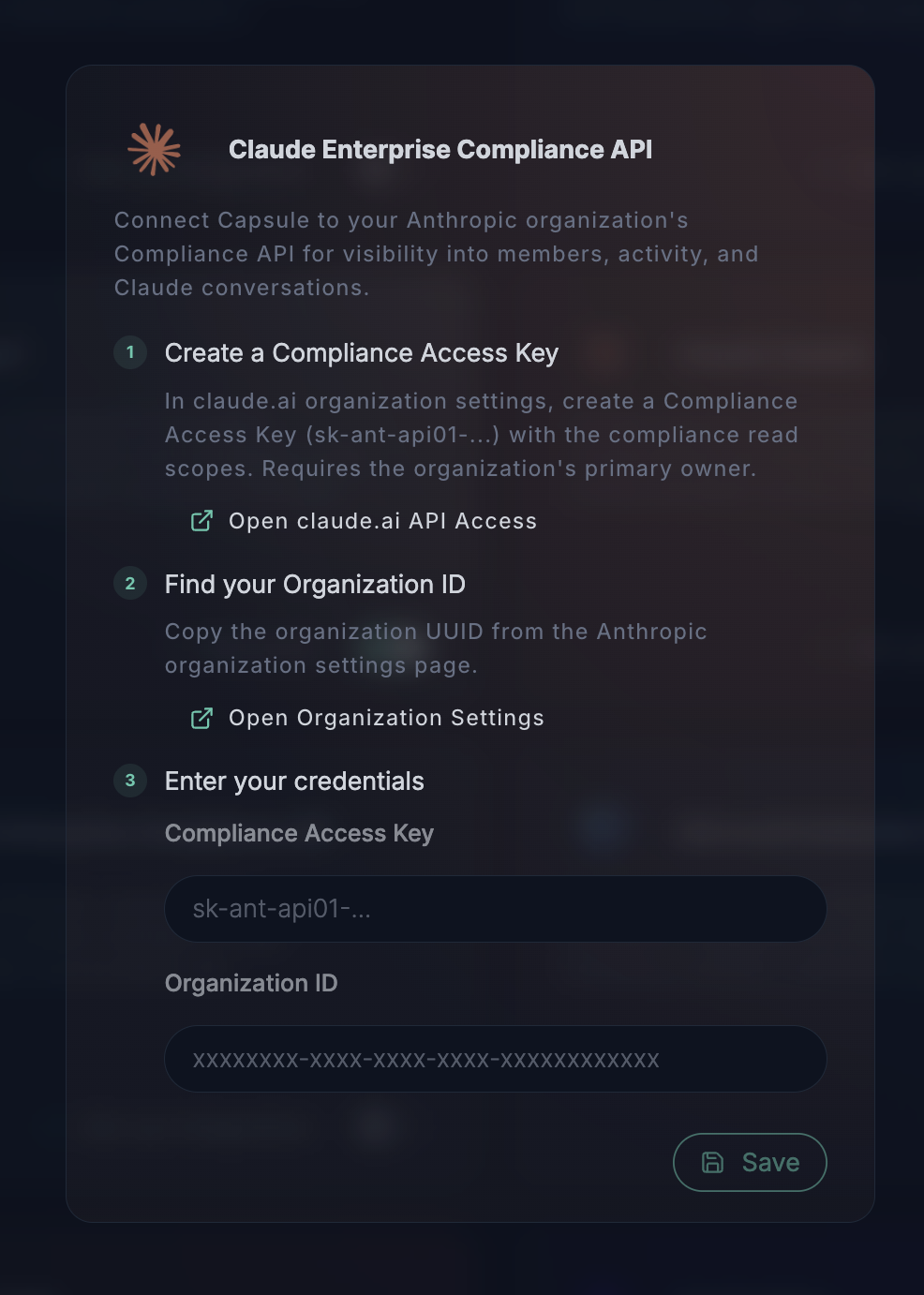
This integration reads your organization's data from Anthropic's Compliance API for audit and governance:
- Members - Users across your linked organizations (email, name, and organization role), surfaced as agent owners
- Activity Feed - The organization's audit events, read only for MCP server and skill lifecycle events
- Conversations - Claude.ai chats and their messages, surfaced as sessions in Observability
- Coding sessions - Claude Code and Cowork sessions, local and remote, with the tool calls, MCP tool calls, skill invocations, and models they used
- Skills - Claude.ai skills your members create, surfaced in Inventory under the owning member's agent, with organization-wide shares marked as workspace skills
- MCP servers - The MCP servers your members connect, collected from the activity feed, from the tool names seen in coding sessions and chats, and from managed agent definitions
- Models - The Claude models each per-user agent actually ran, resolved against the model catalog
- Managed Agents - Agent definitions in your Console workspace, with the tools, MCP servers, and skills each one is configured with
The integration is read-only - it never modifies your Anthropic configuration or deletes content. Each user's Claude activity is grouped under a per-user agent (Claude/<email>) so members, activity, sessions, and conversations line up against a single owner. That agent's identity is derived from the member's email address.
Before you begin, ensure you have:
- An active Claude Enterprise plan
- The Compliance API enabled for your organization - the parent organization's primary owner enables it in claude.ai
- Primary owner access in claude.ai, required to create a Compliance Access Key
- Access to a Claude Console workspace, required to create the Claude API key used for Agent Skills
- A Capsule Security account with admin access
This integration uses two keys. Anthropic issues other key types that look similar, so match the names and prefixes exactly - picking the wrong one is the most common setup failure.
| Anthropic's name | Prefix | Created in | Covers |
|---|---|---|---|
| Compliance Access Key | sk-ant-api01- | claude.ai > Organization settings > API | Activity feed, directory, chats, and sessions |
| Claude API key | sk-ant-api03- | Claude Console > Settings > API keys | Console workspace Agent Skills, the model catalog, and Managed Agents. Capsule labels this field Console API key |
Note: A key of the wrong type fails with
401 x-api-key header is requiredeven when the header was sent. Read that message as "this endpoint does not accept this key type", not as a missing header.
Create a Compliance Access Key in claude.ai. This is the credential Capsule uses to read your organization's compliance data.
Confirm you are signed in as the organization's primary owner - only the primary owner can create a Compliance Access Key
Click Create key and give it a descriptive name (e.g., "Capsule Security Integration")
Grant the compliance read scopes so Capsule can read the activity feed, directory, and conversations:
read:compliance_activities- the Activity Feedread:compliance_user_data- users, chats, and messagesread:compliance_org_data- organizations, roles, and groups
Important: Copy and save the key immediately - it begins with
sk-ant-api01-...and is shown only once
- Scopes are fixed when the key is created - to change them, create a new key and delete the old one
- Store the key in a password manager or secret store; never share it in email, chat, or source control
- The key grants read access to conversation content - treat it as a privileged credential
- To rotate it, create a new key, reconnect the integration in Capsule, then delete the old key in claude.ai
Capsule binds the integration to your parent organization, identified by its UUID.
In claude.ai, open your organization settings
Copy the Organization ID - it is a UUID in the format
xxxxxxxx-xxxx-xxxx-xxxx-xxxxxxxxxxxx
91012d09-e48b-438e-a489-1bebfd8fa6f9Note: The Organization ID must be a valid UUID. If you paste a name or slug instead, Capsule rejects it with "Invalid Organization ID format (must be UUID)."
Capsule reads Agent Skills, the model catalog, and Managed Agents from Anthropic's Console APIs, which a Compliance Access Key cannot reach. That needs a Claude API key - Anthropic's name for a standard sk-ant-api03-... key. Capsule's setup card labels this field Console API key.
Switch to the workspace whose Agent Skills and Managed Agents you want in your inventory - a key reaches only the workspace it is created in
Click Create key, give it a descriptive name, and copy the value - it begins with
sk-ant-api03-...and is shown only once
- This key is not read-only. Anthropic offers no read-only scope for skills, so any key that can list a workspace's skills can also delete them and run inference on your account. Capsule only ever issues read-only
GETcalls:/v1/skills,/v1/models, and/v1/agents. - Scope it to the one workspace you want covered so its reach stops there.
- An organization can hold many workspaces. This key covers the workspace it was created in, not the whole organization.
Once you have your Compliance Access Key and Organization ID, set up the integration in the portal.
Log in to the Capsule Security portal
Click Integrations in the left sidebar
Find the Claude Enterprise Compliance API card and click Set up Integration
- The card links back to this guide, then collects your credentials:
- Organization ID - paste the UUID from Step 2
- Compliance Access Key - paste the full key from Step 1 (starts with
sk-ant-api01-...) - Console API key - a
sk-ant-api03-...key that brings the Agent Skills of a Console workspace into your inventory; see Console workspace skills for its reach before you create one
Capsule validates the credentials live as you type. When both fields are valid you'll see Connection successful
Click Save
- Capsule validates the credentials and creates a Claude Enterprise Compliance API environment scoped to your organization
- Your access key is encrypted and stored in Capsule's secret store - it is never displayed again
- Capsule syncs incrementally: members and the activity feed populate first, followed by Claude conversations. View members and activity under Inventory, and conversations under Observability → Activity Type - Session
| Compliance API source | Appears in Capsule as |
|---|---|
| Organization members (directory) | Owners on the per-user Claude/<email> agent |
| Activity Feed events | MCP servers and Skills in Inventory - the feed is read only for MCP server and skill lifecycle events |
| Claude.ai chats and messages | Sessions in Observability, with user / assistant messages |
| Claude Code and Cowork sessions (local and remote) and their messages | Sessions in Observability, with the tool calls, MCP tool calls, and skill invocations they made |
| Skill lifecycle and sharing events | Skills in Inventory, owned by the member who created them |
| Console workspace skills | Skills in Inventory, with no owning member, listed from the Skills API |
| MCP server activity events, session tool names, chat tool blocks, and managed agent definitions | MCP servers in Inventory, linked to the agents that used them |
| Models named on sessions and chats, resolved against the model catalog | Models in Inventory, per per-user agent |
| Console workspace agent definitions | Managed Agents in Inventory, with their tools, MCP servers, and skills |
Syncs are incremental and checkpointed - each run fetches only what changed since the last run, with overlap and de-duplication so no events are missed or double-counted.
If the connection test fails, the portal shows a specific message:
| Message | Cause | Fix |
|---|---|---|
| Compliance Access Key is required | The key field is empty | Paste the full sk-ant-api01-... key from Step 1 |
| Organization ID is required | The Organization ID field is empty | Paste the organization UUID from Step 2 |
| Invalid Organization ID format (must be UUID) | The value isn't a UUID | Copy the UUID exactly from your claude.ai organization settings |
| API key invalid or revoked | The key is wrong, deleted, or revoked (401) | Create a fresh Compliance Access Key and reconnect |
| Key lacks the required compliance scopes, or wrong key type | The key is missing a read scope, or it's an Admin / model key (403) | Use a Compliance Access Key (sk-ant-api01-...) with the read scopes from Step 1 |
| Organization or resource not found | The organization isn't reachable by this key (404) | Confirm the UUID is your parent organization and the key belongs to it |
| Rate limited - try again shortly | Anthropic's compliance rate limit was hit (429) | Wait and retry; Capsule paces and retries automatically |
| Console API key invalid or revoked | The Console key is wrong or deleted (401) | Create a fresh Console API key and paste it again |
| Console API key lacks access to the Skills API | The value is not a Console API key, or it cannot reach the workspace (403) | Use a sk-ant-api03-... key scoped to the workspace you want covered |
Use the retry button next to the Organization ID field to re-run the connection test after correcting a value.
Capsule calls Anthropic's Compliance API under https://api.anthropic.com/v1/compliance/*, authenticating with the x-api-key header. It reads:
GET /v1/compliance/organizationsand/organizations/{org_uuid}/users- the org tree and membersGET /v1/compliance/activities- the audit activity feed (incremental, bycreated_at)GET /v1/compliance/apps/chatsand/apps/chats/{chat_id}/messages- Claude conversations and their messagesGET /v1/compliance/apps/sessions/localand/apps/sessions/remote, plus/apps/sessions/{scope}/{session_id}/messages- Claude Code and Cowork sessions and their messages
The Claude API key covers the Console surfaces the Compliance API does not expose, on the same x-api-key header:
GET /v1/skills(and a skill's/versions) - Console workspace Agent SkillsGET /v1/models- the model catalog used to resolve the models observed on sessions and chatsGET /v1/agents- Managed Agents, sent with Anthropic's managed-agents beta header
The Compliance API has no skills endpoint, so skill inventory is reconstructed from the Activity Feed: claude_skill_created, claude_skill_replaced and claude_skill_deleted for the skill itself, and role_assignment_granted / role_assignment_revoked on skill resources for who it is shared with.
A skill is identified by the member who created it, so Capsule can only place a skill once it has seen that skill's creation event. The skill sync therefore does not move a checkpoint forward the way the activity and conversation syncs do: it re-reads a fixed two-year window on every run, so a rename or a sharing change is always read alongside the creation event that says who owns the skill. Narrowing the query to the skill activity types is what keeps a window that wide inexpensive. Two limits remain:
- Skills created before your organization enabled the Compliance API have no creation event to find, and stay invisible until they are next replaced or recreated. Recording is not retroactive.
- Skills created in a Console workspace are a separate surface, covered by the Console API key below rather than by the Activity Feed.
Agent Skills created in a Claude Console workspace - the ones used with the API rather than in claude.ai - are not in the Compliance API at all. Capsule reads them from the Skills API instead, which is why the Console API key (sk-ant-api03-...) is collected during setup alongside the Compliance Access Key.
Two things to weigh when you create that key:
- Coverage is one workspace. Skills are isolated per Console workspace, and an API key reaches only the workspace it is bound to. An organization can have many workspaces, so this inventory covers the key's workspace, not the whole organization.
- The key is not read-only. Anthropic does not offer a read-only scope for skills: any key that can read a workspace's skills can also delete them and run inference on your account. Capsule only ever issues read-only
GETcalls, but you are handing over a credential that permits more. Scope the key to the workspace you want covered so its reach stops there.
Unlike the claude.ai skills above, this is a full listing rather than a reconstruction, so it needs no backfill. A skill is never retired just because it stopped appearing in a sync: only an explicit skill delete event in claude.ai retires one. If the key stops working, the sync fails loudly rather than reporting an empty workspace - which would otherwise read as "every skill was deleted".
All /v1/compliance/* endpoints share a single rate limit of 600 requests per minute per parent organization. Capsule paces requests within that budget, honors Retry-After on 429, retries transient 5xx, and never retries 4xx. Sync state (checkpoints) is persisted per environment so runs resume where they left off.
Your access key is held in an encrypted secret store, scoped to your tenant and organization, and is used only to read the endpoints above.
For help with this integration:
- Email: support@capsule.security
- Include: Your tenant ID, your Anthropic Organization ID, and any error message shown in the connection test