Deploy Capsule Security hooks for AI coding assistants across your fleet using Microsoft Intune. Capsule supports two paths:
- Automated (recommended) - Connect Intune as a Capsule integration. Capsule creates an Intune Remediation in your tenant on your behalf, scoped to the Microsoft Entra ID groups you choose, and reconciles it whenever the configuration changes. Intune re-checks every assigned device on a schedule and re-applies the hooks when they are missing or have been edited.
- Manual - Download a
hooks.json/managed-settings.jsonfrom the Capsule portal and create the Intune remediation script package yourself, following the per-product steps later in this guide.
Both paths deploy the same configuration to the same locations on Windows devices. Use the automated path when you want changes to flow continuously (new hooks, rotated JWTs, group changes) without manual touch-ups in the Intune admin center.
- Access to the Microsoft Intune admin center (https://intune.microsoft.com)
- A Capsule Security account with admin access
- Target devices enrolled in Intune
- For the automated path: a Microsoft Entra ID Global Administrator (or other identity allowed to grant tenant-wide admin consent)
- For the automated path: an Intune Remediations license on the targeted devices. Windows Enterprise E3 or E5, Windows Education A3 or A5, and Windows Virtual Desktop Access all qualify. Intune does not block the deployment when the license is missing, so confirm your entitlement before you rely on self-heal.
The Intune integration lets Capsule create, update, assign, and remove Intune remediation scripts (deviceManagementScripts) directly through Microsoft Graph, scoped to the Entra ID groups you select. Once connected, you create one Distribution per target product (Cursor, GitHub Copilot, Claude Code, Kiro, Devin (Windsurf), Cline, Codex), pick the target groups, and Capsule keeps the deployed script content in sync with the corresponding integration.
Capsule operates Intune through a dedicated multi-tenant Azure AD app registration owned by Capsule. You don't create an app in your tenant - you grant the Capsule app permission to act in yours.
- In the Capsule portal, navigate to Integrations and locate Microsoft Intune.
- Click Install. You are redirected to Microsoft's tenant-wide admin-consent endpoint (
login.microsoftonline.com/organizations/v2.0/adminconsent), the only endpoint that grants application (app-role) permissions. - Sign in as an Entra ID admin authorized to grant tenant-wide consent and review the requested permissions.
- Approve the consent. Microsoft redirects back to Capsule (
/integrations/callback/INTUNE) withadmin_consent=True&tenant=<your Microsoft tenant ID>, and Capsule verifies connectivity using an app-only Graph token acquired via theclient_credentialsgrant. Capsule then runs a second, silent authorization to capture a delegated refresh token, which it keeps only to act as the connecting admin when Multi-Admin Approval blocks an app-only write. That second step is best-effort - the integration stays enabled if it does not complete. See App-only operation for what that token is used for and how to remove it.
After consent, the Capsule app appears under Microsoft Entra admin center → Enterprise applications in your tenant. You can revoke access from there at any time, which immediately disables the integration.
The Capsule Intune app requests the following Microsoft Graph permissions. Tenant-wide admin consent grants them for both application (app-only) and delegated use - Capsule writes to Graph app-only by default and only falls back to acting as the connecting admin (via the stored refresh token) when Multi-Admin Approval blocks an app-only write:
| Permission | Why it's needed |
|---|---|
DeviceManagementScripts.ReadWrite.All | Create, update, assign, and delete the remediation deviceManagementScripts that deploy Capsule hooks. |
DeviceManagementConfiguration.Read.All | Verify the connection and read, reject, or cancel Capsule's own Intune Multi-Admin Approval requests. |
Group.Read.All | Resolve the Microsoft Entra ID groups you select so distributions can be assigned to them. |
The consent screen also requests the standard openid and profile sign-in scopes plus offline_access, which is what lets Capsule obtain the refresh token used for the delegated Multi-Admin Approval fallback. Because consent is granted tenant-wide, there is no per-user sign-in cost and the integration keeps working as admins rotate.
Each of the three permissions above appears twice on the consent screen, once as an application permission and once as delegated. They are the same permission on the Microsoft Graph service principal; the difference is whose identity the resulting token carries.
| Application (app role) | Delegated (scope) | |
|---|---|---|
| Acting identity | The Capsule service principal in your tenant | A signed-in admin, acting through Capsule |
| Token flow | client_credentials, no user involved | Authorization code, then the stored refresh token |
| Effective access | The permission itself, tenant-wide | The permission, intersected with the admin's own Intune RBAC role |
| Used by Capsule for | Every install, edit, uninstall, and delete | Only the last Multi-Admin Approval retry described below |
Capsule runs on the application half. The delegated half exists for one reason: Multi-Admin Approval refuses to queue an approval initiated by a service principal, so the write retry ladder falls back to the connecting admin's delegated token. That token can only do what the admin could do in the Intune admin center themselves, and it stops working if the admin loses their Intune role, while app-only operation continues unaffected. User.Read is delegated-only because it is used once, to record which admin the fallback token belongs to.
These three permissions, requested as both app roles and delegated scopes, are the complete set the integration needs. No permissions on the separate Microsoft Intune resource service principal are requested, so the integration installs identically in tenants regardless of how Intune was provisioned.
Every Graph call Capsule makes for Intune - creating, patching, assigning, and deleting remediation scripts - uses the app-only client_credentials grant. The acting identity is the Capsule service principal in your tenant, not a person, so day-to-day operation already survives the installing admin leaving the company, losing their Intune license, or rotating their password.
One credential is user-bound: the delegated refresh token captured by the silent second authorization. It is read for exactly one thing, the last rung of the Multi-Admin Approval (MAA) write ladder:
- App-only token, no approval header. Tenants without MAA never get past this step.
- On Microsoft's "approval header required" response, retry app-only with
x-msft-approval-justification. Most MAA tenants accept this and queue the operation against the service principal. - Only if MAA rejects a service-principal-initiated approval, retry with the connecting admin's delegated token, because MAA requires a user identity on the approval queue.
So if your tenant does not use MAA, or its MAA accepts step 2, the delegated token is never read. It is still captured and stored, though: there is currently no install mode that skips the capture. The portal chains the admin-consent and silent-authorization steps automatically, so the token is stored seconds after you approve consent, before you could intervene in Entra. Pre-assigning app roles does not change this either, because tenant-wide admin consent uses .default and therefore grants every permission registered on the app, delegated ones included.
If your requirement is that the connection not depend on a named admin's identity, the procedure below neutralizes the credential after install. Read it as a hardening step, not a different install path.
You need the Capsule Intune app's client ID for the commands that follow. Read it from the client_id query parameter of the Microsoft consent URL that Install redirects to, or ask support@capsule.security.
Complete the portal Install flow as an admin authorized to grant tenant-wide consent. A delegated refresh token is captured at this point - that is expected and unavoidable today.
Delete the tenant-wide delegated grant from Microsoft Entra admin center → Enterprise applications → the Capsule Intune app → Permissions, or with Graph PowerShell:
Connect-MgGraph -Scopes "Application.Read.All","DelegatedPermissionGrant.ReadWrite.All"

$appId = "<Capsule Intune client ID>"
$sp = Get-MgServicePrincipal -Filter "appId eq '$appId'"

Get-MgOauth2PermissionGrant -Filter "clientId eq '$($sp.Id)'" |
  ForEach-Object { Remove-MgOauth2PermissionGrant -OAuth2PermissionGrantId $_.Id }
The application (app-role) assignments the integration actually runs on are unaffected. With no delegated consent on file, the silent authorization fails with
consent_required, which Capsule treats as benign, so no further token is captured.Revoke the connecting admin's sessions to invalidate the token Capsule already holds, rather than relying on Microsoft re-evaluating consent at redemption time:
Revoke-MgUserSignInSession -UserId "<connecting admin UPN>"This signs that admin out of every Microsoft application, so schedule it deliberately.
Contact support@capsule.security if you need the stored material removed at rest. Capsule retains the encrypted token until it is purged on request; revoking in Entra makes it unusable but does not delete it.
In the Capsule portal, run Test connection on the Intune integration. It exercises the app-only path, so a pass confirms the integration is fully functional with the delegated credential gone.
Repeat steps 2 and 3 after any reconnect. Reconnecting re-runs admin consent, which re-grants the delegated scopes and lets the silent authorization capture a fresh token. The revocation does not survive a reconnect on its own.
This does not affect the delegated credential either way. It is useful when you want the application permissions to land through your own change management, or to inspect exactly which app roles are assigned to the service principal before an admin is asked to consent.
Connect-MgGraph -Scopes "Application.ReadWrite.All","AppRoleAssignment.ReadWrite.All"

$appId = "<Capsule Intune client ID>"

# Materialize the multi-tenant app's service principal in this tenant
$sp = Get-MgServicePrincipal -Filter "appId eq '$appId'"
if (-not $sp) { $sp = New-MgServicePrincipal -AppId $appId }

$graph = Get-MgServicePrincipal -Filter "appId eq '00000003-0000-0000-c000-000000000000'"

foreach ($value in @(
  'DeviceManagementScripts.ReadWrite.All',
  'DeviceManagementConfiguration.Read.All',
  'Group.Read.All'
)) {
  $role = $graph.AppRoles | Where-Object { $_.Value -eq $value -and $_.AllowedMemberTypes -contains 'Application' }
  if (-not $role) { Write-Warning "App role $value not found on Microsoft Graph"; continue }
  New-MgServicePrincipalAppRoleAssignment -ServicePrincipalId $sp.Id `
    -PrincipalId $sp.Id -ResourceId $graph.Id -AppRoleId $role.Id
}
AppRoleAssignment.ReadWrite.All is itself a privilege-escalation permission, so it cannot be bootstrapped app-only - run this as a Global Administrator or Privileged Role Administrator. An admin still has to complete the portal consent flow afterwards, which is what supplies Capsule with your tenant ID and enables the integration.
If your tenant uses Multi-Admin Approval and its approval service rejects service-principal-initiated requests, distribution writes stop at step 3 of the ladder and fail with a "delegated admin token required" error instead of being queued for approval. The distribution reports an error in the Capsule portal and the deployed script is left unchanged.
Two ways out if you hit that: exclude the Capsule app from your MAA Scripts policies in the Intune admin center, or re-run the portal Install as an admin to re-capture the delegated token and accept the user binding.
This step is optional. Without it the integration keeps working and each script change Capsule makes waits for one approval in Intune, as described in the ladder above. If you would rather have Capsule's changes apply immediately, exclude the Capsule enterprise application from every MAA access policy that covers scripts. Exclusions apply only to app-authenticated calls made by the excluded application; interactive actions by your admins still go through MAA. Distributions configured to act as the connected Microsoft user also still wait for approval, since their changes are made under that admin's identity rather than the Capsule app's.
Security trade-off: in Microsoft's words, an exclusion "creates a gap in your approval workflow that could be exploited if the excluded application is compromised". Every exclusion change is recorded in the Intune audit log, and a policy can hold at most 50 excluded applications.
- In the Intune admin center, go to Tenant administration > Multi Admin Approval > Access policies. Note the Policy type column: repeat the steps below for every policy whose type is Script, since a tenant can have more than one.
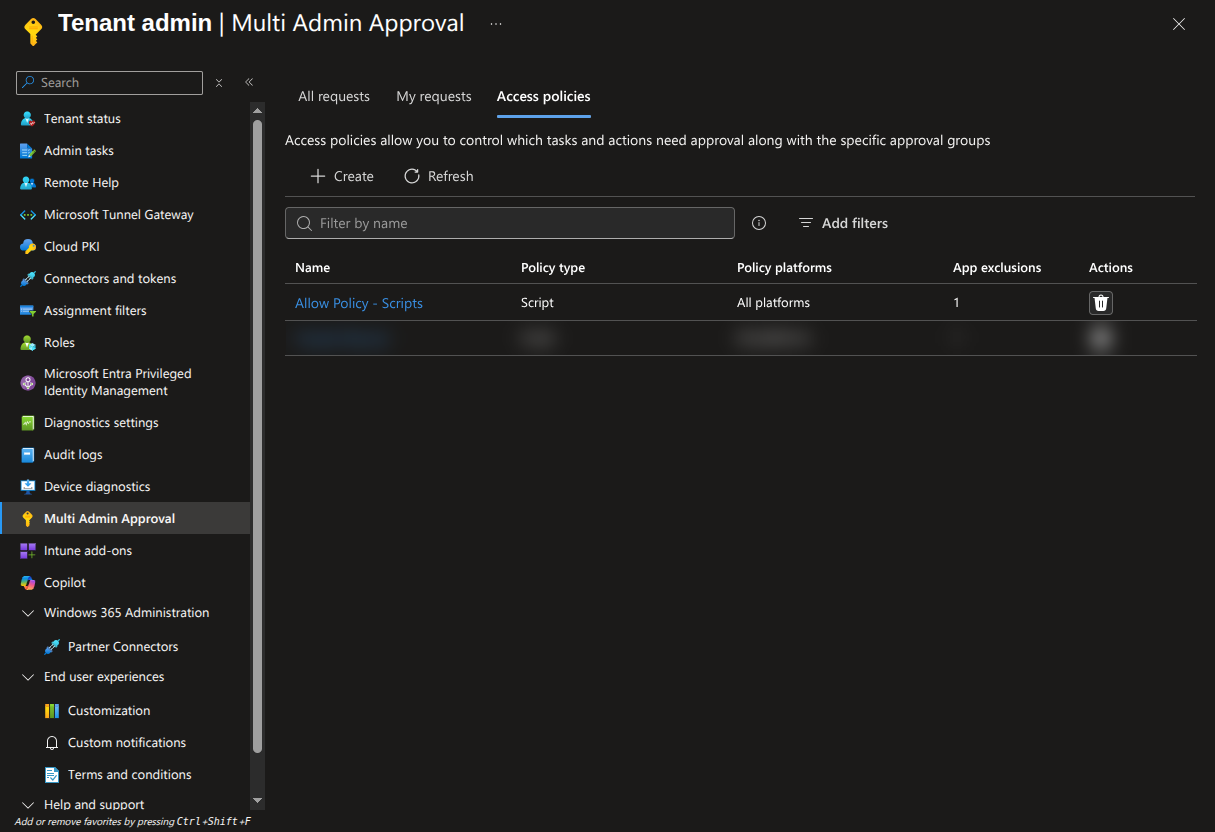
Open the policy and select the Exclusions tab, then Add enterprise applications. Search for Capsule with Intune, select it, and choose Review + submit for approval with a justification.
A second administrator from the policy's approver group approves the request under Multi Admin Approval > Received requests. The requester cannot approve their own request, and an unapproved request expires after 4 days.
Once approved, the requester reopens the policy and selects Complete. The policy is only in effect when its status reads Completed.
Once completed, the policy summary lists Capsule with Intune under Exclusions > Apps:
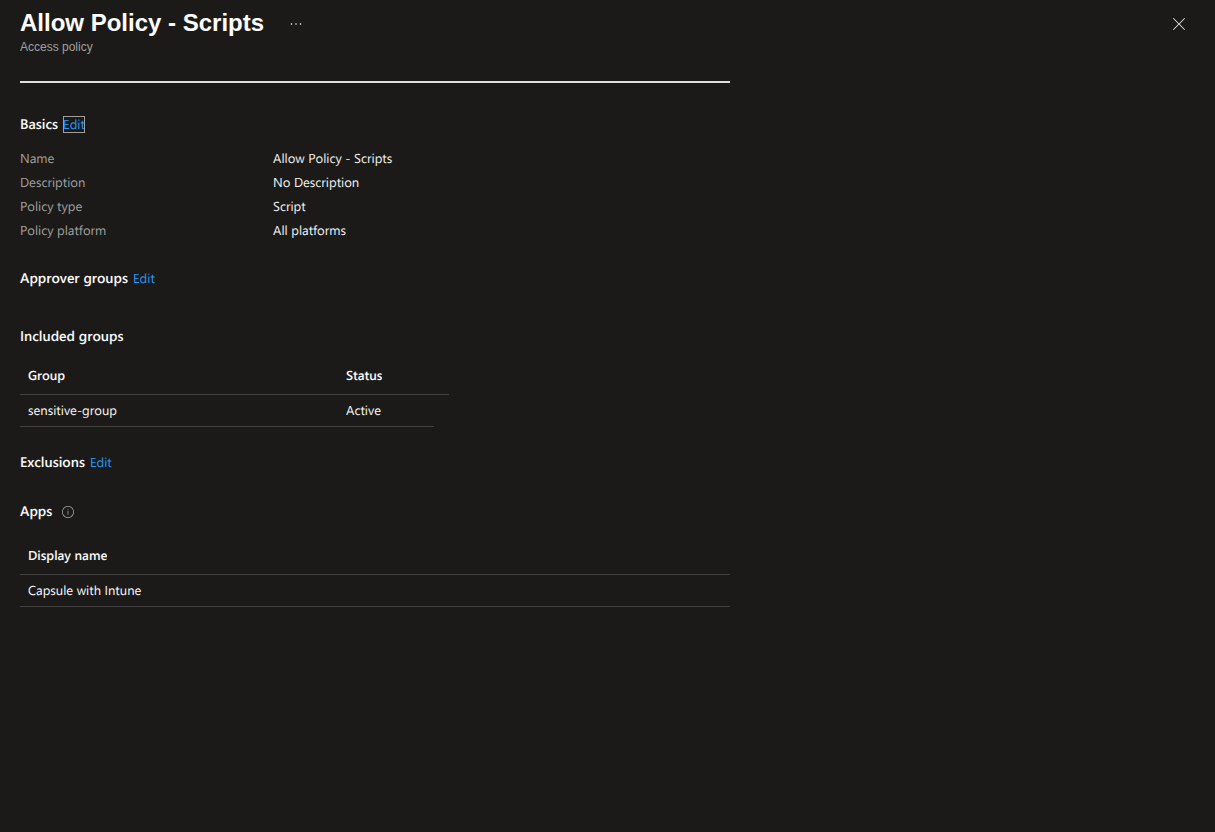
From then on, Capsule's script installs, edits, reapplies, and uninstalls apply without an approval, and the delegated fallback token is never read. Microsoft's reference: Multi Admin Approval in Intune.
Admin clicks Install ─▶ Microsoft admin-consent page ─▶ Admin approves
                                                              │
                                          tenant + state ◀────┘
                                                  │
                              Capsule acquires app-only Graph token
                                                  │
              Admin creates a Distribution (target product + Entra ID groups)
                                                  │
             Capsule POSTs deviceHealthScripts + /assign to Graph
                                                  │
        Intune runs detection on assigned devices and remediates any drift
Day-to-day reconciliation:
- Distribution created → Capsule creates a
deviceHealthScript(an Intune Remediation) in your tenant, pairing a detection script that checks whether the hooks are in place with the remediation script that installs them, and assigns it to the selected Entra ID groups. - Device drifts (a user deletes the hook file, edits it, or reinstalls the product) → detection fails on the device's next scheduled run and Intune re-runs the remediation on its own. Nothing is needed from you or from Capsule. Capsule schedules the primary pair every 6 hours, so a tampered device heals within that window.
- Distribution edited (groups changed, target integration updated, JWT rotated) → Capsule patches the existing detection and remediation pair and re-runs
/assignso the deployed configuration always matches what's shown in the portal. - Distribution reapplied (Reapply hooks on the distribution's row) → Capsule regenerates the pair from the current configuration and patches it into Intune. Group assignments are untouched. Use it to pick up a newer hook version without editing anything; assigned devices run the new script on their next check-in.
- Distribution uninstalled → Capsule deletes the remediation first so it cannot re-install the hooks, then creates a cleanup script and assigns it to the same Entra ID groups.
- Distribution removed → Capsule deletes the
deviceHealthScriptfrom your tenant and unassigns it from all groups. - Connection revoked in Entra ID → Graph token acquisition fails; the integration moves to an error state in Capsule and stops issuing changes. Previously deployed scripts remain in your tenant until you remove them.
WSL is not reachable from SYSTEM, so any product whose primary pair runs under SYSTEM gets its WSL coverage from a second remediation in the signed-in user's context. A user context only exists while somebody is logged on, so that companion pair runs once a day rather than every 6 hours, and a tampered WSL distribution heals within 24 hours of the next sign-in. Products whose primary pair already runs in user context carry their WSL check inside it and heal on the same 6 hour cadence as the rest of their hooks.
Scripts deployed by Capsule run under SYSTEM (for device-targeted products like Cursor, Claude Code, Devin (Windsurf), and Codex, which write to system-level paths) or in user context (for user-targeted products like GitHub Copilot, Kiro, and Cline, which write under %APPDATA% or %USERPROFILE%). Capsule chooses the correct context automatically per product. For Devin (Windsurf), the SYSTEM-context script drops hooks.json to C:\ProgramData\Windsurf\ and the CapsuleWindsurfHook.ps1 companion script to C:\ProgramData\Capsule\WindsurfHooks\, and Capsule additionally deploys a separate user-context WSL companion script that seeds /etc/windsurf/hooks.json (as root) inside each user's WSL distributions. Codex follows the same shape: the SYSTEM-context script drops the managed requirements.toml to C:\ProgramData\OpenAI\Codex\ and CapsuleCodexHook.ps1 to C:\ProgramData\Capsule\CodexHooks\, with a user-context companion that seeds /etc/codex/requirements.toml (as root) inside each user's WSL distributions.
After installing the integration and creating a Distribution:
- In the Capsule portal, open the Intune integration → Distributions tab and confirm the distribution status is Active.
- In the Intune admin center, navigate to Devices > Scripts and remediations > Remediations and find the script package whose name starts with
Capsule –. Open it to inspect the detection and remediation content, the run schedule, and the group assignments. The Device status and Overview tabs report how many devices came back without issues, with issues, or remediated. - On an assigned device, verify the target product picks up the hook (see the per-product Verification sections below).
Uninstall and Delete are different actions, and the order matters. Uninstall deploys a cleanup script that removes what Capsule put on the devices the distribution targets. Delete only removes the distribution from Capsule and its script from your tenant, leaving every device exactly as it is. Uninstall before you Delete.
To uninstall, open the Intune integration → Distributions tab, choose Uninstall from devices on the distribution's row, and confirm. Capsule deletes the remediation first, then creates the cleanup script and assigns it to the same Entra ID groups the install was delivered to. That order is deliberate: a remediation that is still assigned would detect the freshly cleaned device as drifted and put the hooks straight back. Targets that ship a WSL companion get the same sequence for both remediations.
Distributions created before self-heal shipped were deployed as platform scripts rather than remediations. They keep the older order, where the cleanup is assigned before the install script is deleted, because a platform script never re-runs on its own. Such a distribution is converted to a remediation the next time you edit or reapply it.
The distribution then reports Uninstalled. That state means the cleanup was delivered, not that every device has run it. Devices clean up on their next Intune sync, which can take several hours, and a device that is offline today runs the cleanup whenever it next checks in.
Capsule declines to uninstall in three cases, each reported on the distribution's row: a distribution that never reached Intune, which you delete instead; one with an approval still open in Intune, which you resolve before selecting Check now; and one with no Entra ID groups assigned, where Capsule has nowhere to deliver the cleanup and you re-assign the install's groups first.
The cleanup script stays in your tenant after the uninstall completes, on purpose. It is what cleans up devices that are offline today and check in weeks later, and user-context scripts re-run for each new user who signs in. Remove it from Devices > Scripts and remediations > Platform scripts once your fleet has reported in.
Removal is content-matched. Each file is deleted only when the copy on disk still carries Capsule's marker, which is either the hook route suffix the file's content posts to or, for Claude Code managed settings, the full JSON-escaped Capsule dispatcher path (C:\\Program Files\\ClaudeCode\\hooks\\capsule-hook.ps1). A file you replaced at the same path carries no marker, so cleanup leaves it alone and says so in its output. Nothing is copied aside before a delete, so that marker check is the only thing protecting a file you own. Every matched file is removed whole rather than edited.
Directories Capsule created are removed once they are empty, innermost first, while a product's own configuration directory survives. Inside WSL the cleanup runs once per installed distribution against the same marker, skips a distribution that never had the file, and is skipped entirely on a device with no WSL.
Cleanup keeps no copy of what it removes, the same way the install wrote these files without preserving what was at those paths. To put Capsule's hooks back on a device, re-install the distribution and it rewrites them.
If you prefer to keep deployments under your own change-management process, follow the per-product steps below. The configuration content is identical to what the automated integration would push - only the delivery mechanism differs.
Deploy the Cursor hooks configuration using Intune's Remediation feature.
- Log in to the Capsule Security portal
- Navigate to Settings > Integrations
- Locate the Cursor integration
- Download the
hooks.jsonfile
Log in to the Microsoft Intune admin center
Navigate to Devices > Remediations
Click Create script package and configure:
- Name: Capsule Security – Cursor Hooks
- Description: Deploys Capsule Security hooks configuration for Cursor
Add the Detection Script (
Detect-CursorHooks.ps1):$hooksFile = "C:\ProgramData\Cursor\hooks.json" if (-not (Test-Path $hooksFile)) { Write-Output "Capsule hooks configuration is missing." exit 1 } if ((Get-Content -Raw -Path $hooksFile) -match 'capsulesecurity') { Write-Output "Capsule hooks configuration exists." exit 0 } Write-Output "Capsule hooks not found in existing hooks.json." exit 1Add the Remediation Script (
Remediate-CursorHooks.ps1):$hooksDir = "C:\ProgramData\Cursor" $hooksFile = "$hooksDir\hooks.json" if (-not (Test-Path $hooksDir)) { New-Item -ItemType Directory -Path $hooksDir -Force | Out-Null } $newJson = @' <PASTE YOUR HOOKS.JSON CONTENT HERE> '@ $newConfig = $newJson | ConvertFrom-Json if (Test-Path $hooksFile) { try { $existing = Get-Content -Raw -Path $hooksFile | ConvertFrom-Json } catch { Copy-Item $hooksFile "$hooksFile.bak" -Force $existing = [PSCustomObject]@{ hooks = [PSCustomObject]@{} } } if (-not $existing.hooks) { $existing | Add-Member -NotePropertyName hooks -NotePropertyValue ([PSCustomObject]@{}) -Force } foreach ($prop in $newConfig.hooks.PSObject.Properties) { $eventName = $prop.Name $incoming = @($prop.Value) $kept = @() if ($existing.hooks.PSObject.Properties.Name -contains $eventName) { $kept = @($existing.hooks.$eventName | Where-Object { -not ("$($_.bash)$($_.powershell)$($_.command)" -match 'capsulesecurity') }) } $existing.hooks | Add-Member -NotePropertyName $eventName -NotePropertyValue ($kept + $incoming) -Force } $final = $existing } else { $final = $newConfig } [System.IO.File]::WriteAllText($hooksFile, ($final | ConvertTo-Json -Depth 20), [System.Text.UTF8Encoding]::new($false)) Write-Output "Capsule hooks configuration deployed successfully." exit 0Replace
<PASTE YOUR HOOKS.JSON CONTENT HERE>with the contents of thehooks.jsonfile. The script merges Capsule hooks into any existinghooks.jsonand re-runs are idempotent (prior Capsule entries are replaced, non-Capsule hooks are preserved).Configure the script settings:
- Run this script using the logged-on credentials: No (runs as SYSTEM)
- Enforce script signature check: No
- Run script in 64-bit PowerShell: Yes
Assign the script package to the appropriate device groups
After deployment, restart Cursor on target devices, then:
- Open Cursor Settings
- Navigate to the Hooks tab
- Confirm the hooks are listed and enabled
Deploy a second remediation that deletes the file this deployment wrote, then unassign the install remediation. Delete C:\ProgramData\Cursor\hooks.json only when it still contains /cursor/hooks/events, so a device where someone replaced the file with their own hooks keeps it. That marker check is the only thing standing between the delete and a file you own, because nothing is copied aside first.
$path = 'C:\ProgramData\Cursor\hooks.json'
if ((Test-Path -LiteralPath $path) -and ((Get-Content -LiteralPath $path -Raw) -like '*/cursor/hooks/events*')) {
    Remove-Item -LiteralPath $path -Force
}
If you also deployed into WSL, run the same match inside each distribution:
sudo grep -qF '/cursor/hooks/events' /etc/cursor/hooks.json \
&& sudo rm -f /etc/cursor/hooks.jsonDeploy the GitHub Copilot hooks configuration using Intune's Remediation feature. GitHub Copilot reads its hooks from a per-user directory (%USERPROFILE%\.copilot\hooks\), so the remediation must run as the signed-in user, not as SYSTEM, and must be targeted at user groups.
- Log in to the Capsule Security portal
- Navigate to Settings > Integrations
- Locate the GitHub Copilot integration
- Download the
capsule-hooks.jsonfile
Log in to the Microsoft Intune admin center
Navigate to Devices > Remediations
Click Create script package and configure:
- Name: Capsule Security – GitHub Copilot Hooks
- Description: Deploys Capsule Security hooks configuration for GitHub Copilot
Add the Detection Script (
Detect-CopilotHooks.ps1):$hooksFile = Join-Path $env:USERPROFILE '.copilot\hooks\capsule-hooks.json' if (-not (Test-Path $hooksFile)) { Write-Output "Capsule hooks configuration is missing." exit 1 } if ((Get-Content -Raw -Path $hooksFile) -match 'capsulesecurity') { Write-Output "Capsule hooks configuration exists." exit 0 } Write-Output "Capsule hooks not found in existing capsule-hooks.json." exit 1Add the Remediation Script (
Remediate-CopilotHooks.ps1):$ErrorActionPreference = "Stop" $targetPath = Join-Path $env:USERPROFILE '.copilot\hooks\capsule-hooks.json' $payload = @' <PASTE YOUR CAPSULE-HOOKS.JSON CONTENT HERE> '@ try { $parentDir = Split-Path -Path $targetPath -Parent if (-not (Test-Path -Path $parentDir)) { New-Item -ItemType Directory -Path $parentDir -Force | Out-Null } $utf8NoBom = New-Object System.Text.UTF8Encoding($false) [System.IO.File]::WriteAllText($targetPath, $payload, $utf8NoBom) Write-Output "Capsule: wrote GitHub Copilot hooks config to $targetPath" exit 0 } catch { Write-Error "Capsule: failed to write GitHub Copilot hooks config to $targetPath. $_" exit 1 }Replace
<PASTE YOUR CAPSULE-HOOKS.JSON CONTENT HERE>with the contents of thecapsule-hooks.jsonfile. It writes Capsule'scapsule-hooks.jsonto the per-user Copilot hooks directory as UTF-8 without a BOM, creating the directory if needed, and is safe to re-run on every Intune cycle. The automated Intune integration deploys the samecapsule-hooks.jsonthis way, plus aCapsuleBeacon.ps1companion in the same directory that this script does not write. It replaces the entirecapsule-hooks.jsonat that path rather than merging into an existing one.Configure the script settings:
- Run this script using the logged-on credentials: Yes
- Enforce script signature check: No
- Run script in 64-bit PowerShell: Yes
Assign the script package to the appropriate user groups
After deployment, start a GitHub Copilot session on a target device, then:
- In the Capsule portal, navigate to Inventory > Agents and confirm the GitHub Copilot agent appears
- Open the agent and confirm session, prompt, response, and tool-invocation events are captured
Deploy a second remediation that deletes the files this deployment wrote, then unassign the install remediation. It has to run as the signed-in user against the same user groups, because the files live in each user's profile. Both filenames are Capsule's own, but match on /github-copilot/hooks/events anyway, so a file someone rewrote at the same path is left alone. CapsuleBeacon.ps1 is written by the automated deployment rather than by the paste-in script above; the guard below is a no-op on a device that never received it.
$hooksDir = Join-Path $env:USERPROFILE '.copilot\hooks'
foreach ($name in @('capsule-hooks.json', 'CapsuleBeacon.ps1')) {
    $path = Join-Path $hooksDir $name
    if ((Test-Path -LiteralPath $path) -and ((Get-Content -LiteralPath $path -Raw) -like '*/github-copilot/hooks/events*')) {
        Remove-Item -LiteralPath $path -Force
    }
}
Leave .copilot\hooks in place: it is Copilot's directory, not one Capsule created. If you also deployed into WSL, run the same match inside each distribution as the user, not as root:
grep -qF '/github-copilot/hooks/events' "$HOME/.copilot/hooks/capsule-hooks.json" \
&& rm -f "$HOME/.copilot/hooks/capsule-hooks.json"Deploy the Claude Code managed settings configuration using Intune's Remediation feature.
- Log in to the Capsule Security portal
- Navigate to Settings > Integrations
- Locate the Claude Code integration
- Click Install and select Windows as the target platform
- Download the
managed-settings.jsonfile
Log in to the Microsoft Intune admin center
Navigate to Devices > Remediations
Click Create script package and configure:
- Name: Capsule Security – Claude Code Hooks
- Description: Deploys Capsule Security managed settings for Claude Code
Add the Detection Script (
Detect-ClaudeCodeHooks.ps1):$settingsFile = "C:\Program Files\ClaudeCode\managed-settings.json" if (-not (Test-Path $settingsFile)) { Write-Output "Capsule managed settings is missing." exit 1 } if ((Get-Content -Raw -Path $settingsFile) -match 'capsulesecurity|capsule-hook\.ps1') { Write-Output "Capsule managed settings exists." exit 0 } Write-Output "Capsule hooks not found in existing managed-settings.json." exit 1Add the Remediation Script (
Remediate-ClaudeCodeHooks.ps1):$settingsDir = "C:\Program Files\ClaudeCode" $settingsFile = "$settingsDir\managed-settings.json" if (-not (Test-Path $settingsDir)) { New-Item -ItemType Directory -Path $settingsDir -Force | Out-Null } $newJson = @' <PASTE YOUR MANAGED-SETTINGS.JSON CONTENT HERE> '@ $newConfig = $newJson | ConvertFrom-Json if (Test-Path $settingsFile) { try { $existing = Get-Content -Raw -Path $settingsFile | ConvertFrom-Json } catch { Copy-Item $settingsFile "$settingsFile.bak" -Force $existing = [PSCustomObject]@{} } # Merge top-level keys from new config; for `hooks`, merge by event foreach ($prop in $newConfig.PSObject.Properties) { $key = $prop.Name if ($key -eq 'hooks') { if (-not $existing.hooks) { $existing | Add-Member -NotePropertyName hooks -NotePropertyValue ([PSCustomObject]@{}) -Force } foreach ($eventProp in $newConfig.hooks.PSObject.Properties) { $eventName = $eventProp.Name $incoming = @($eventProp.Value) $kept = @() if ($existing.hooks.PSObject.Properties.Name -contains $eventName) { $kept = @($existing.hooks.$eventName | Where-Object { $blob = '' if ($_.hooks) { $blob += ($_.hooks | ConvertTo-Json -Depth 10 -Compress) } $blob += "$($_.command)$($_.bash)$($_.powershell)" -not ($blob -match 'capsulesecurity|capsule-hook\.ps1') }) } $existing.hooks | Add-Member -NotePropertyName $eventName -NotePropertyValue ($kept + $incoming) -Force } } else { $existing | Add-Member -NotePropertyName $key -NotePropertyValue $prop.Value -Force } } $final = $existing } else { $final = $newConfig } [System.IO.File]::WriteAllText($settingsFile, ($final | ConvertTo-Json -Depth 20), [System.Text.UTF8Encoding]::new($false)) Write-Output "Capsule managed settings deployed successfully." exit 0Replace
<PASTE YOUR MANAGED-SETTINGS.JSON CONTENT HERE>with the contents of themanaged-settings.jsonfile. The script merges Capsule hooks into any existingmanaged-settings.jsonand re-runs are idempotent (prior Capsule entries are replaced, non-Capsule settings and hooks are preserved).Configure the script settings:
- Run this script using the logged-on credentials: No (runs as SYSTEM)
- Enforce script signature check: No
- Run script in 64-bit PowerShell: Yes
Assign the script package to the appropriate device groups
After deployment, restart Claude Code on target devices, then:
- Run
/hooksin Claude Code to confirm all hooks are listed - Start a session and verify events appear in the Capsule Security portal
Claude Code is the one product where the reversal is not a file deletion. managed-settings.json is Claude Code's enterprise policy file and the remediation above merged Capsule's hooks into whatever it already held, so deleting it would take your own settings with it. Deploy a second remediation that removes only the Capsule hook entries, then unassign the install remediation. It runs as SYSTEM against the same device groups.
Match on capsule-hook.ps1 as well as capsulesecurity. On Windows every Capsule entry runs the dispatcher (powershell -NoP -Exec Bypass -File "C:\Program Files\ClaudeCode\hooks\capsule-hook.ps1") and the Capsule endpoint lives inside that script rather than in managed-settings.json, so a matcher looking only for capsulesecurity finds nothing and removes nothing.
This manual workflow removes only Capsule's entries because it does not own the whole file.
$settingsFile = "C:\Program Files\ClaudeCode\managed-settings.json"

if (Test-Path -LiteralPath $settingsFile) {
    $config = Get-Content -Raw -LiteralPath $settingsFile | ConvertFrom-Json

    if ($config.hooks) {
        $eventNames = @($config.hooks.PSObject.Properties | ForEach-Object { $_.Name })
        foreach ($eventName in $eventNames) {
            $kept = @($config.hooks.$eventName | Where-Object {
                    $blob = ''
                    if ($_.hooks) { $blob += ($_.hooks | ConvertTo-Json -Depth 10 -Compress) }
                    $blob += "$($_.command)$($_.bash)$($_.powershell)"
                    -not ($blob -match 'capsulesecurity|capsule-hook\.ps1')
                })
            if ($kept.Count -gt 0) {
                $config.hooks | Add-Member -NotePropertyName $eventName -NotePropertyValue $kept -Force
            } else {
                $config.hooks.PSObject.Properties.Remove($eventName)
            }
        }
    }

    [System.IO.File]::WriteAllText($settingsFile, ($config | ConvertTo-Json -Depth 20), [System.Text.UTF8Encoding]::new($false))
}
The automated integration reverses its own deployment differently because it owns the whole file: it deletes managed-settings.json and the capsule-hook.ps1 dispatcher it wrote under C:\Program Files\ClaudeCode\hooks\. See Uninstall a distribution.
Deploy the Kiro hooks installer using Intune's Remediation feature. Unlike Cursor, GitHub Copilot, and Claude Code, the Kiro integration emits a complete, self-contained PowerShell installer - there is no hooks.json or managed-settings.json to paste. The installer writes the Capsule hook dispatcher under %APPDATA%\Kiro\scripts\, merges the dispatcher path into kiroAgent.trustedCommands in the user's Kiro settings.json, and fans the Capsule hook (capsule-stop.kiro.hook) out to every Kiro workspace registered on the device. See the Kiro Integration guide for the full description of what the installer does.
Because the installer writes under %APPDATA% / %LOCALAPPDATA%, the Intune remediation must run as the signed-in user, not as SYSTEM, and must be targeted at user groups.
- Log in to the Capsule Security portal
- Navigate to Settings > Integrations
- Locate the Kiro integration
- Click Install and select Windows as the target platform
- Download the
capsule-kiro-install.ps1file
Log in to the Microsoft Intune admin center
Navigate to Devices > Remediations
Click Create script package and configure:
- Name: Capsule Security – Kiro Hooks
- Description: Deploys Capsule Security hooks configuration for Kiro
Add the Detection Script (
Detect-KiroHooks.ps1):$settingsFile = "$env:APPDATA\Kiro\User\settings.json" if (-not (Test-Path $settingsFile)) { Write-Output "Capsule Kiro hooks are missing." exit 1 } if ((Get-Content -Raw -Path $settingsFile) -match 'capsulesecurity') { Write-Output "Capsule Kiro hooks exist." exit 0 } Write-Output "Capsule Kiro dispatcher not found in settings.json." exit 1Add the Remediation Script (
Remediate-KiroHooks.ps1): paste the entire contents of thecapsule-kiro-install.ps1file you downloaded in Step 1, unchanged.The installer is already designed for unattended deployment: it requires no admin rights, prompts for nothing, writes only under
%APPDATA%/%LOCALAPPDATA%, is fully idempotent (safe to re-run on every Intune cycle), exits0on success, and exits2only if PowerShell 5.1 is unavailable.Do not wrap, edit, or trim the script - the embedded authentication token, dispatcher source, and hook definition must reach the endpoint exactly as the portal generated them.
Configure the script settings:
- Run this script using the logged-on credentials: Yes
- Enforce script signature check: No
- Run script in 64-bit PowerShell: Yes
Assign the script package to the appropriate user groups
After Intune reports the script as remediated on a target device, have the user:
- Quit and reopen Kiro
- Open any Kiro workspace and run a simple agent task (for example: "Create a new file called test.txt with the content 'Hello World'")
- In the Capsule portal, navigate to Inventory > Agents and confirm the Kiro agent appears
- Open the agent and confirm session, prompt, response, and tool-invocation events are captured
If events do not appear, confirm that %APPDATA%\Kiro\User\settings.json contains kiroAgent.trustedCommands referencing the Capsule dispatcher path, and that the workspace's .kiro/hooks/ directory contains capsule-stop.kiro.hook. See Troubleshooting in the Kiro Integration guide for the full diagnostic flow.
Kiro is out of scope for Capsule's automated uninstall: its install runs a vendor-generated installer rather than placing files this distribution owns, so there is nothing for Capsule to reverse. To remove it, unassign the install remediation and undo what the installer did on the device - delete the dispatcher under %APPDATA%\Kiro\scripts\, drop the dispatcher path from kiroAgent.trustedCommands in %APPDATA%\Kiro\User\settings.json, and delete capsule-stop.kiro.hook from each workspace's .kiro/hooks/ directory.
Deploy the Codex managed configuration using Intune's Remediation feature. Because the configuration is managed, the Capsule hooks are trusted by policy, apply to every user on the device, and cannot be disabled or removed by users - no per-user trust approval is required. On Windows, Codex's hook commands call an external CapsuleCodexHook.ps1 script, so deployment writes two files - the requirements.toml managed configuration to C:\ProgramData\OpenAI\Codex\ and that script to C:\ProgramData\Capsule\CodexHooks\. Both are machine-wide paths, so the remediation runs as SYSTEM and is targeted at device groups.
Upgrading from the per-user configuration: earlier Codex distributions wrote a per-user
%USERPROFILE%\.codex\hooks.json(plus$HOME/.codex/hooks.jsoninside WSL). Codex loads user hooks alongside managed hooks, so a device that still carries those files runs every Capsule hook twice. Remove them from the profiles that were previously enrolled when you switch a device to the managed configuration.
- Log in to the Capsule Security portal
- Navigate to Settings > Integrations
- Locate the Codex integration
- Click Install and select Windows as the target platform
- Download the
capsule-codex-managed.ziparchive Capsule generates: it contains therequirements.tomlmanaged configuration and theCapsuleCodexHook.ps1hook script it invokes
Log in to the Microsoft Intune admin center
Navigate to Devices > Remediations
Click Create script package and configure:
- Name: Capsule Security – Codex Managed Configuration
- Description: Deploys the Capsule Security managed configuration for Codex CLI
Add the Detection Script (
Detect-CodexManagedConfig.ps1):$scriptFile = 'C:\ProgramData\Capsule\CodexHooks\CapsuleCodexHook.ps1' $configFile = 'C:\ProgramData\OpenAI\Codex\requirements.toml' if (-not ((Test-Path $scriptFile) -and (Test-Path $configFile))) { Write-Output "Capsule Codex managed configuration is missing." exit 1 } if ((Get-Content -Raw -Path $scriptFile) -match 'capsulesecurity') { Write-Output "Capsule Codex managed configuration exists." exit 0 } Write-Output "Capsule Codex hook script not found." exit 1Add the Remediation Script (
Remediate-CodexManagedConfig.ps1):$ErrorActionPreference = "Stop" function Write-CapsuleFile($path, $content, $label) { $parentDir = Split-Path -Path $path -Parent if (-not (Test-Path -Path $parentDir)) { New-Item -ItemType Directory -Path $parentDir -Force | Out-Null } $utf8NoBom = New-Object System.Text.UTF8Encoding($false) [System.IO.File]::WriteAllText($path, $content, $utf8NoBom) Write-Output "Capsule: wrote $label to $path" } try { $hookScript = @' <PASTE YOUR CapsuleCodexHook.ps1 CONTENT HERE> '@ Write-CapsuleFile 'C:\ProgramData\Capsule\CodexHooks\CapsuleCodexHook.ps1' $hookScript 'Codex CapsuleCodexHook.ps1' $requirementsToml = @' <PASTE YOUR REQUIREMENTS.TOML CONTENT HERE> '@ Write-CapsuleFile 'C:\ProgramData\OpenAI\Codex\requirements.toml' $requirementsToml 'Codex managed configuration' exit 0 } catch { Write-Error "Capsule: failed to write managed hook files. $_" exit 1 }Replace each placeholder with the contents of the matching file from the archive you downloaded -
CapsuleCodexHook.ps1andrequirements.toml. This mirrors what the automated Intune integration deploys: both files are written to their machine-wide locations as UTF-8 without a BOM, and re-runs are idempotent. The managed configuration invokesCapsuleCodexHook.ps1by path, so both must be present - deployingrequirements.tomlalone would leave every hook pointing at a script that was never installed. Each file is replaced wholesale rather than merged.Configure the script settings:
- Run this script using the logged-on credentials: No
- Enforce script signature check: No
- Run script in 64-bit PowerShell: Yes
Assign the script package to the appropriate device groups
Codex running inside WSL reads /etc/codex/requirements.toml, which the SYSTEM-context script above cannot reach - it cannot enumerate a user's WSL distributions. To cover WSL, create a second script package that runs in user context and copies the same requirements.toml into /etc/codex/ (as root) inside each installed distribution. The automated Intune integration deploys this companion for you.
After deployment, close any running Codex CLI sessions on target devices, then:
- Start a new Codex CLI session so the managed configuration is loaded
- Run
/hooksand confirm the Capsule hooks are listed as managed - managed hooks need no user trust approval, so nothing further is required; if no hooks are listed, the configuration is not being loaded - In the Capsule portal, navigate to Inventory > Agents and confirm the Codex agent appears
- Open the agent and confirm session, prompt, response, and tool-invocation events are captured
Deploy a second remediation that deletes both files this deployment wrote, then unassign the install remediation. It runs as SYSTEM against the same device groups. Each delete is conditional on the file still containing /codex/hooks/events, so a requirements.toml an admin has since rewritten is left alone. That marker check is the only guard, because nothing is copied aside first. CapsuleCodexHook.ps1 and the directories holding it are Capsule's own, and those directories are removed once empty, innermost first. C:\ProgramData\OpenAI\Codex is Codex's own directory and stays.
$config = 'C:\ProgramData\OpenAI\Codex\requirements.toml'
$hookScript = 'C:\ProgramData\Capsule\CodexHooks\CapsuleCodexHook.ps1'

if ((Test-Path -LiteralPath $config) -and ((Get-Content -LiteralPath $config -Raw) -like '*/codex/hooks/events*')) {
    Remove-Item -LiteralPath $config -Force
}

if ((Test-Path -LiteralPath $hookScript) -and ((Get-Content -LiteralPath $hookScript -Raw) -like '*/codex/hooks/events*')) {
    Remove-Item -LiteralPath $hookScript -Force
}

foreach ($dir in @('C:\ProgramData\Capsule\CodexHooks', 'C:\ProgramData\Capsule')) {
    if ((Test-Path -LiteralPath $dir) -and -not (Get-ChildItem -LiteralPath $dir -Force)) {
        Remove-Item -LiteralPath $dir -Force
    }
}
If you also deployed into WSL, run the same match inside each distribution:
sudo grep -qF '/codex/hooks/events' /etc/codex/requirements.toml \
  && sudo rm -f /etc/codex/requirements.toml
Neither this script nor the automated cleanup touches the legacy per-user %USERPROFILE%\.codex\hooks.json and $HOME/.codex/hooks.json described above. Remove those from any profile that was enrolled before the managed configuration.
After deploying remediation scripts, monitor status in the Intune admin center:
- Navigate to Devices > Remediations
- Select the relevant script package
- Review the deployment status:
- Without issues: Configuration already deployed
- With issues: Configuration missing, remediation pending
- Remediated: Script successfully deployed the configuration
- For ongoing changes (new hook versions, rotated JWTs, group adjustments), the automated integration reconciles your Intune tenant on every distribution edit so the deployed scripts always match the portal. The manual path needs the remediation script package to be edited in the Intune admin center each time.
- A manually created remediation runs every 24 hours by default. The automated integration sets its own schedule: every 6 hours for the device-context pair, and once a day at 03:00 local time for the user-context WSL pair
- Detection scripts look for the Capsule URL marker in the configuration file, so devices with unrelated hooks already configured will still trigger remediation
- The Cursor and Claude Code remediation scripts merge Capsule hooks into any existing configuration, so non-Capsule hooks and other settings are preserved (and if the existing file is unparseable it is copied to
<file>.bakfirst, leaving the original in place to be overwritten). The GitHub Copilot script writes a freshcapsule-hooks.json, and the Codex script writes a freshrequirements.tomlplus itsCapsuleCodexHook.ps1companion - the same files the automated integration drops, replacing whatever is already at those paths. All re-runs are idempotent. - Cursor, Claude Code, Devin (Windsurf), and Codex use system-level paths - deploy with SYSTEM context and target device groups
- GitHub Copilot, Kiro, and Cline use user-level paths (
%APPDATA%/%USERPROFILE%) - deploy with user context and target user groups - All seven integrations can be deployed as separate remediation packages and assigned independently
For help with deployment:
- Email: support@capsule.security
- Include: Your organization ID, Intune tenant details, and any error messages